Receipt settings
A receipt template decides what appears on a receipt: whether your logo is at the top, whether the cashier is named, what the footer says. One template covers both the printed receipt and the emailed one, so you design the document once.
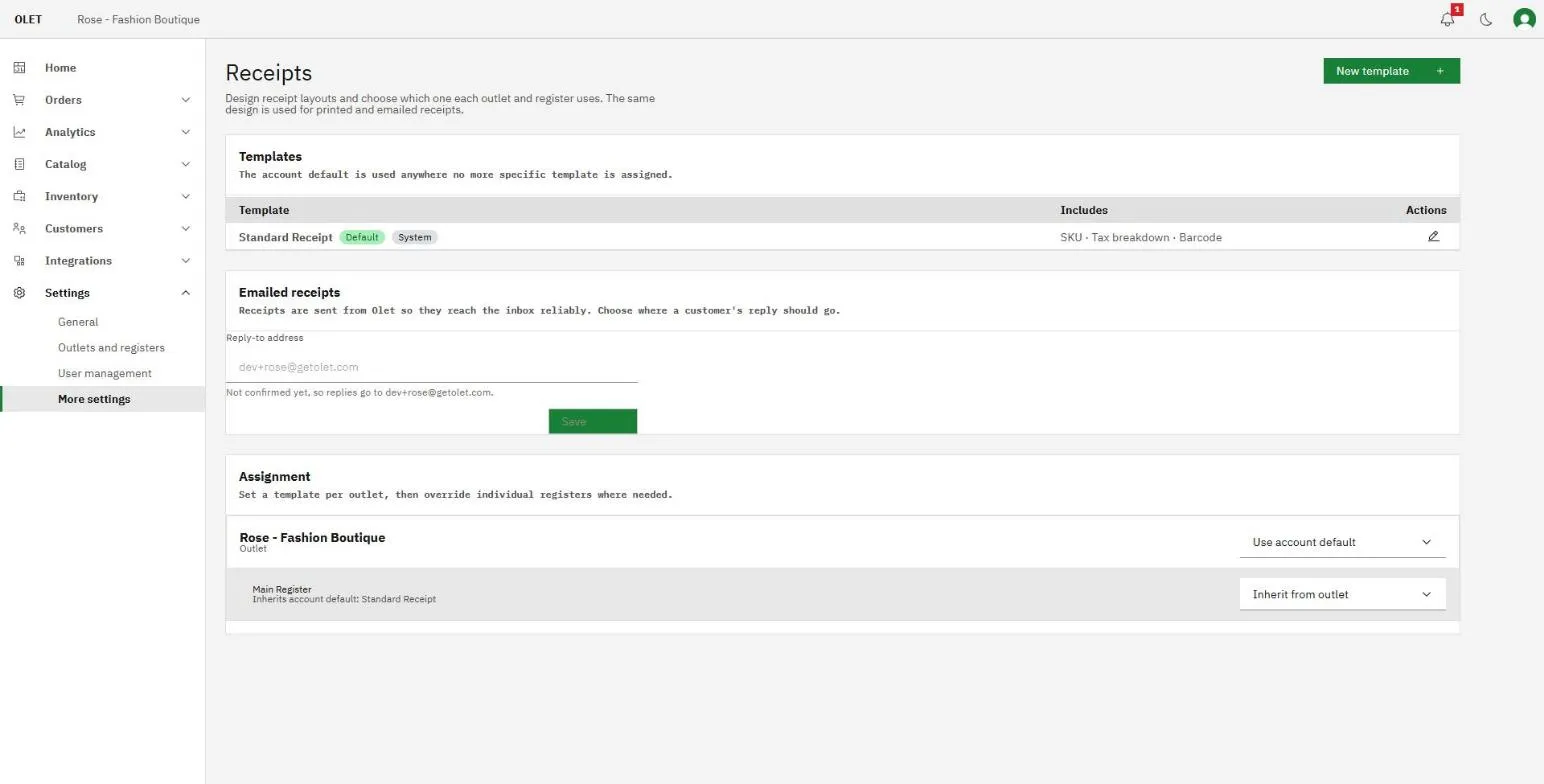
Go to Settings > Receipts in the back office. The page has three parts: your Templates, the reply address for Emailed receipts, and Assignment, where you say which template each outlet and register uses.
Changes here reach the emailed receipt straight away. On paper they appear once the register app on the device has been updated, so do not expect the next printed receipt to change the moment you save.
Create a template
Section titled “Create a template”- Select New template at the top right.
- Enter a Template name, for example
Standard receipt. - Turn the blocks you want on or off. The preview beside them redraws as you go.
- Write the Footer message.
- Select Create template.
Every account has one template marked Default, and it is used anywhere no more specific template is assigned. Turn Use as account default on to move the default onto the template you are editing. You cannot switch it off on the template that currently holds it, because an account always needs a default. Set another template as the default instead, and it moves.
A template tagged System is one OLET provides. You can use and assign it but not delete it.
What you can show
Section titled “What you can show”Header
- Store logo, the logo from General settings
- Business name
- Address
- Phone number
- Email address
Line items and totals
- Cashier name
- Product SKU
- Promotion names
- Tax breakdown (per rate)
Footer
- Order note
- Receipt barcode
The Footer message is free text under everything else. A receipt roll is roughly 42 characters wide, so keep the lines short.
A card payment always names the card, like Card Visa ****4242, on every template. This isn’t a toggle: OLET shows it whenever the payment provider reported the card’s brand and last 4 digits.
Check both versions before you save
Section titled “Check both versions before you save”The preview has a switcher above it: Printed and Emailed. The printed pane draws the thermal receipt. The emailed pane is rendered by the same code that sends the real email, so what you see is what lands in the customer’s inbox, along with its subject line and reply address.
The two are laid out for their medium and are deliberately not identical.
| Printed | Emailed | |
|---|---|---|
| Receipt barcode | A scannable barcode | The receipt number as text, because a barcode on a screen does not scan reliably |
| Subject and reply address | Not applicable | Shown at the top of the preview |
| OLET link in the footer | No | Yes |
Everything else follows the same order and the same figures. The amounts on both come from one place, so paper and email cannot disagree about a total.
Where customer replies go
Section titled “Where customer replies go”Receipts are sent from OLET so they reach the inbox reliably, which means the reply address is a separate setting. Under Emailed receipts, type your address into Reply-to address and select Save.
OLET sends a confirmation to that address. Until someone opens it and confirms, the field is tagged Awaiting confirmation and replies keep going to the fallback address shown in the helper text under the field. Once confirmed it is tagged Confirmed.
Assign a template
Section titled “Assign a template”Under Assignment, each outlet has a dropdown, and each register under it has its own.
- An outlet set to Use account default follows whichever template is marked Default.
- A register set to Inherit from outlet follows its outlet.
- Anything else is an explicit choice and wins over the level above it.
Assignment saves as you pick. There is no separate save button in this section.
Delete a template
Section titled “Delete a template”Select the delete icon on the template’s row and confirm. Any outlet or register using it falls back to the account default. A System template has no delete icon: you can edit and rename it, but it stays.
If it goes wrong
Section titled “If it goes wrong”If the emailed preview shows Preview unavailable, the render failed rather than your template being wrong. Close the designer and open it again.
If a printed receipt is missing something you turned on, check that the register is assigned to the template you edited, and that the register app on that device has been updated. Printer problems themselves are covered in Printing problems.