Users and roles
Every person who uses OLET gets their own record, which is what puts a name on each sale, refund, and price change. Settings > User management is where you add them, change what they reach, and take them off the list.
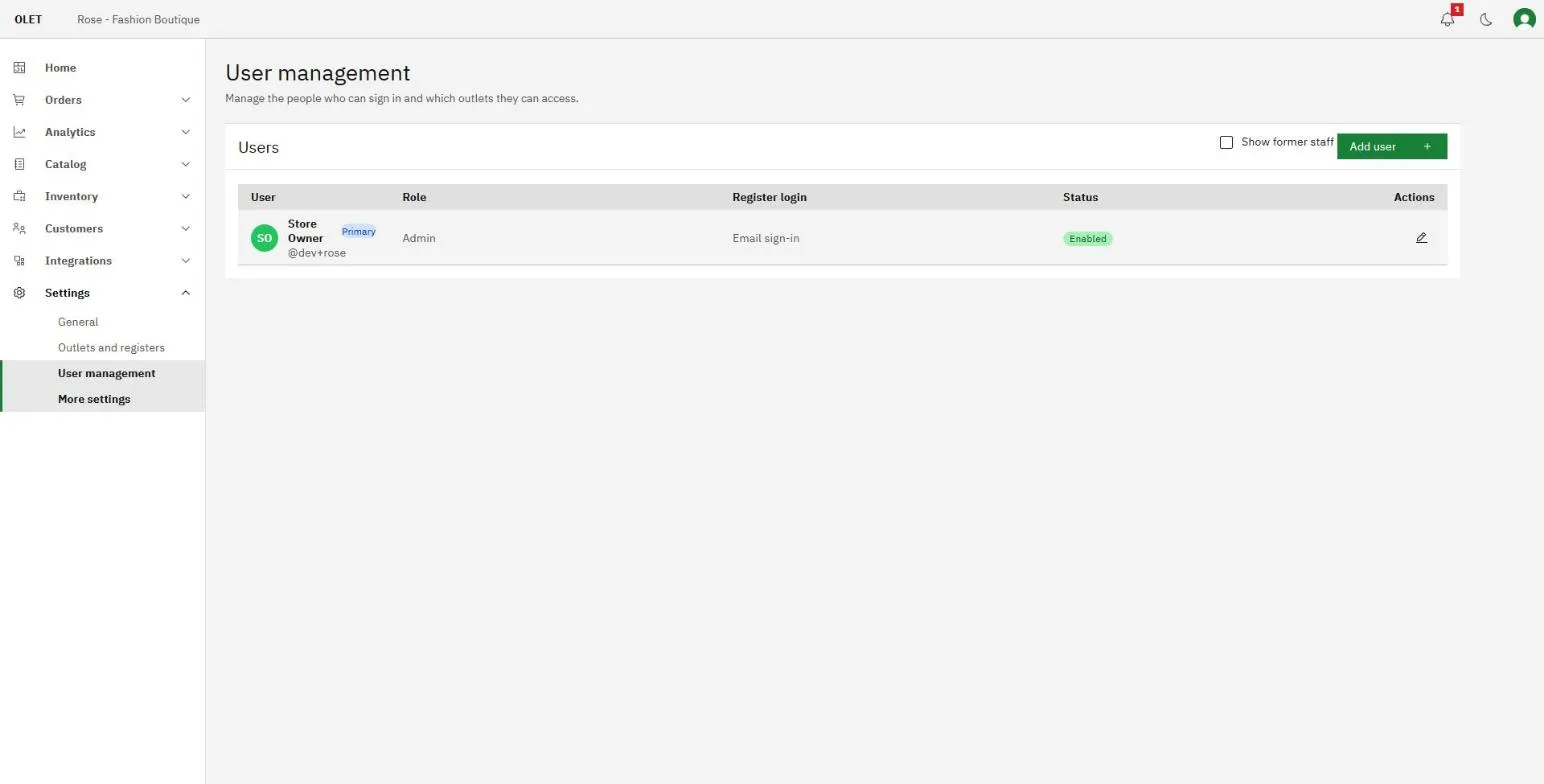
Every row on this list counts towards the people your plan includes, whether they have signed in yet or not, so removing someone who has left is worth doing. There is more in Account and billing.
Add someone
Section titled “Add someone”- Go to Settings > User management.
- Select Add user.
- Fill in First name, Last name, and Email. The email is where their invite, sign-in links, and one-time codes go, so check it before you save.
- For an admin or a manager, you can also fill in Username. It is optional, and it lets them sign in with that instead of their email. Cashiers don’t get one from you, because they choose their own.
- Fill in Phone. It is required for a cashier, because it is their second way back in, and optional for everyone else.
- Choose a Role.
- Leave Enabled ticked so they can sign in.
- Under Register access, pick the outlets whose registers they can sign in at. A cashier needs at least one, because a cashier can only sign in at a register in an outlet they’re assigned to. For an admin or a manager, leave it empty and they have back-office access only. Admins can sign in at every register, including ones in new outlets, so the picker doesn’t appear for them.
- Select Add user.
A box then tells you what happens next:
- Admin or manager. “Invite sent to” their name. OLET emails them an invite link. There is no password: next time they sign in with a code sent to their email.
- Cashier. “
is added”. OLET emails them setup steps. They go to a register in their outlet, tap Create/reset password, and enter the code OLET emails them. Then they choose a username and a 6 digit PIN. See Sign in and switch users.
What each role reaches
Section titled “What each role reaches”Cashier. The register, and nothing else. A cashier has no back office access, so none of the pages under Settings exist for them. You can switch on View reports for the cashier role in Permissions to give them the Reports screen on the register. It is off by default. On the register they sell, look up products and customers, apply an order discount, sell a gift card, mark a sale tax exempt, park a sale, open and close the till, count cash, set up a receipt printer, and arrange the quick keys.
Manager. The register and most of the back office. On top of everything a cashier does, a manager runs the catalog, runs inventory, manages customers, designs receipts, runs exports, manages devices, processes refunds, overrides prices, and reads the activity log. A manager cannot add users, change store settings, or use the privacy tools.
Admin. Everything a manager reaches, plus the parts that belong to whoever owns the business: user management, all of Settings, billing, imports, and data privacy.
If a role is nearly right, an admin can move individual abilities between roles. See Permissions.
Change someone’s details
Section titled “Change someone’s details”Select the pencil on their row. Role, phone, register access, and the Enabled tick are all editable here. You can’t change your own role or disable yourself, and you can’t remove your own row.
An admin’s or a manager’s email address is read only on this form once they have an account, because it is the address they sign in with and only they can change it, from Account in the menu at the top right. Their optional Username stays editable here: clear it to remove it. Changing it here would not change how they sign in, so the field does not pretend to. A cashier’s email is editable, because for a cashier this record is where the address lives.
Turning Enabled off stops someone signing in without taking them off the list. It is the right move for a seasonal worker who will be back.
The register login column
Section titled “The register login column”The list has a Register login column, and it only means something for cashiers. Admins and managers say Email sign-in, because they sign in with a code sent to their email and have no PIN to be in any state.
For a cashier the column shows one of four things:
- Not set up yet. They have never enrolled at a register.
- Reset pending. You cleared their login and they have not set a new one.
- Active. They are set up and can sign in.
- Locked. They are locked out.
If the address on their row has started bouncing, the column says so under the tag. That matters because everything a cashier needs to set up or recover a login arrives by email, so a bouncing address means no code will ever reach them. Fix the address first.
Reset a cashier’s login
Section titled “Reset a cashier’s login”Select the key icon on their row and confirm. They are signed out of every register and their PIN is cleared, and they set a new one themselves at a register using a code sent to their email. Their username stays the same.
Do this when someone is locked out or has forgotten their PIN. It is disruptive mid-shift, since it signs them out everywhere, so it asks you to confirm first.
When someone leaves
Section titled “When someone leaves”Select the bin icon on their row and confirm.
They stop being able to sign in and leave the staff list. Their name stays on the sales and stock movements they already made, which is what keeps your history readable. Tick Show former staff above the list to see people you have removed, marked Former.
The primary account, tagged Primary, cannot be removed and is always enabled. It can sign in at every register, so its Register access is fixed.
Erase a former staff member
Section titled “Erase a former staff member”A person you removed still has their real name and email on their record, because that is what answers “who rang this sale”. If they ask you to remove their personal details, tick Show former staff, find their row, and select the bin icon on it.
Their name, email, and phone are removed from the record for good. The sales and stock movements they made stay, but stop saying who made them. This cannot be reversed and no backup brings it back. It is a different action from removing them from the list, and it is the only one of the two that cannot be undone.
If it goes wrong
Section titled “If it goes wrong”- The save is refused with a message on Register access. A cashier must keep at least one outlet. Add the new one before taking the old one away.
- The save is refused on the email address. Somebody already uses it. An email address belongs to one person.
- The save is refused on the username. Somebody already uses it, or you tried to give a cashier one. Only admins and managers can have a username set here.
- A cashier says nothing arrived. Check the Register login column for a bouncing address, then check the address itself.
- You cannot edit a former staff member. A removed row is read only on purpose. The only thing offered on it is erase.