Anything that takes longer than a click runs in the background, and Settings > Activity is where it lands. Start an export and this is where you collect the file. Start an import and this is where you find out how many rows went in and which ones did not.
The page has two tabs, Jobs and Notifications.
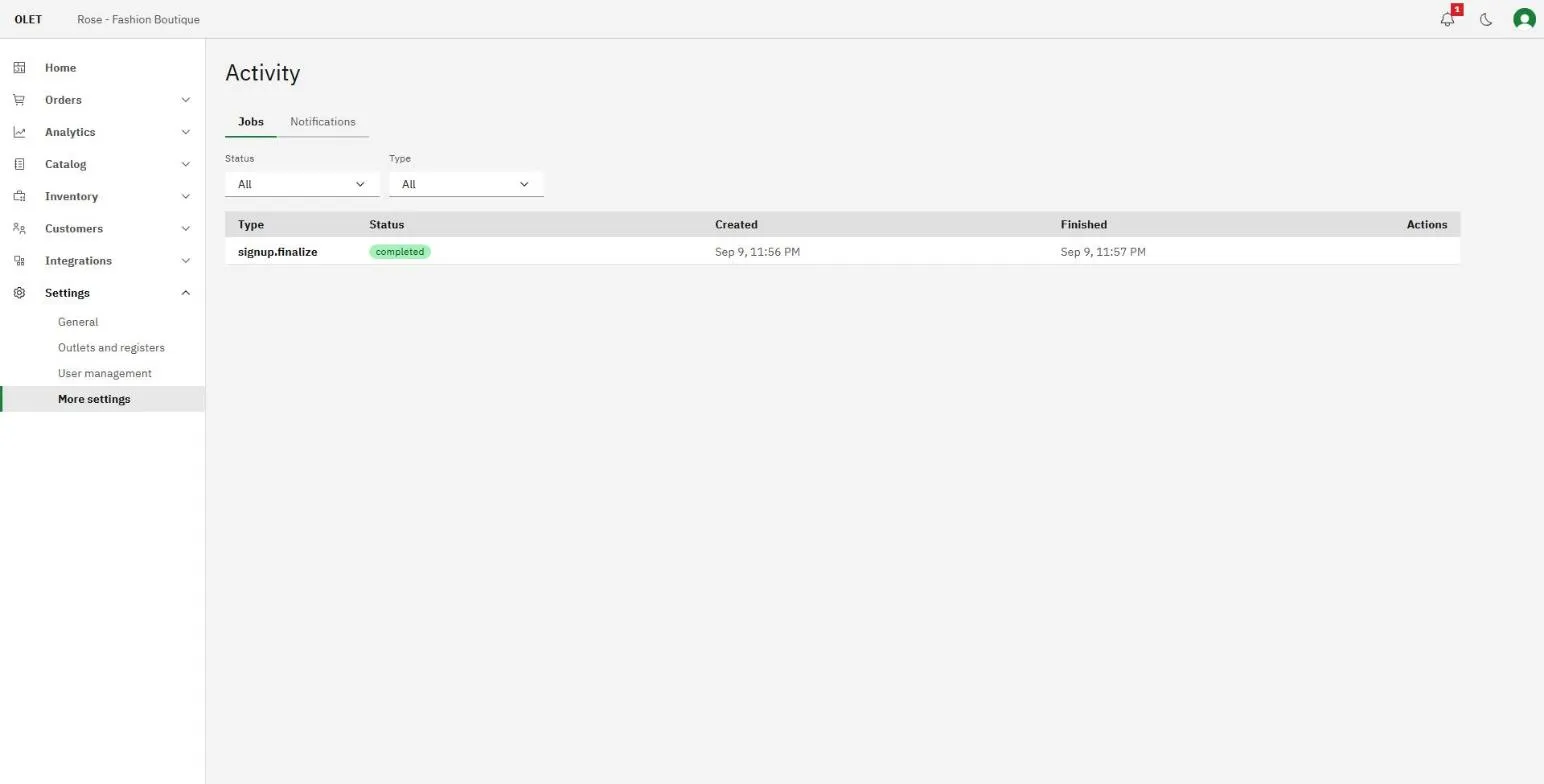
One row per piece of background work: every export, every CSV import, every bulk change to your products, every document OLET generated for you, and the work behind your online store sync and outlet closures. Emails and text messages OLET sends, such as receipts, are hidden by default. Tick Show emails and texts to list them.
- Type names the work, and under it a detail line: the file name for an import, the recipient of an email, the outlet for a stock closure, or the result in plain numbers, such as how many rows were read, created, updated, or skipped. While something is still running, this is where the live count sits.
- Status is where it has got to.
- Created and Finished are the timestamps.
- Actions carries whatever the job left behind.
The list refreshes itself every few seconds while anything is still running, so the count moves on its own. You do not need to reload, and you should not start the same job again just because it is taking a while.
What the statuses mean
Section titled “What the statuses mean”- Queued. Accepted, waiting its turn.
- Active. Running now.
- Completed. Finished, everything went in.
- Completed with errors. Finished, but some rows were refused. The file is still there and the row count tells you how many were skipped.
- Failed or dead letter. It did not finish. Hover the status for the reason. The row also says how many times OLET tried, such as “Tried 3 of 5 times”.
- Cancelled. You stopped it.
Collect a file, or read the errors
Section titled “Collect a file, or read the errors”A finished job that produced a file shows a download icon on its row. Select it to get the file.
A job that refused some rows also shows a report icon. That is the one to open when an import says it skipped rows: it names the rows and says why, so you can fix those and import them again rather than guessing.
Stop one, or run it again
Section titled “Stop one, or run it again”A queued or active job has a cancel action. Use it if you started the wrong export or picked the wrong file, and it stops before it does any more.
A failed or dead letter job has a replay action, which puts the same work back in the queue. It is worth one attempt for something that failed once. If it fails the same way twice, the reason under the status is the thing to fix, not the button.
Finding an old one
Section titled “Finding an old one”Status and Type at the top filter the list, and Type is a list of plain names such as Product export or Customer import, and Load more at the bottom pages further back. Filtering by type is the quickest way to find last week’s product export among a month of imports.
Notifications
Section titled “Notifications”The second tab is what OLET has told you, newest first. Unread entries are marked. Select one to mark it read, or use Mark all read to clear the lot.
These repeat the outcome of things that ran while you were elsewhere, so a job that finished overnight is here as well as on the Jobs tab.
Who can see this
Section titled “Who can see this”Managers and admins. Cashiers have no back office access at all, so this page does not exist for them. An admin can move the ability between roles in Permissions.
If it goes wrong
Section titled “If it goes wrong”- The download does nothing. Files are not kept indefinitely. Start the export again and collect it while it is fresh.
- A job has sat queued for a long time. Leave it. Starting a second one does not make the first go faster, and you will end up with two files.
- An import says completed with errors. Open the report icon on that row. It lists the refused rows and the reason for each.
- The list is empty. Nothing has run yet, or your filters exclude everything. Set Status and Type back to All. The row says “No jobs found” when nothing matches. If you are looking for an email or a text, tick Show emails and texts.