Customer data requests
When a customer asks for their data or asks you to remove it, both answers live on that customer’s record.
Send a customer their own data
Section titled “Send a customer their own data”- Go to Customers > Customers and find them.
- Select the pencil on their row.
- Open the Privacy tab.
- Select Download this customer’s data.
- Go to Settings > Activity, find the export.dsar_customer run, and select the download icon on its row.
Erase a customer’s personal details
Section titled “Erase a customer’s personal details”- Go to Customers > Customers and find them.
- Select the pencil on their row.
- Select Delete customer at the bottom of the form.
- Read the confirmation. It names the customer and says exactly what goes.
- Select Yes, erase this customer.
What the data file contains
Section titled “What the data file contains”The export runs in the background and arrives as a ZIP with three CSVs in it, covering one person and nobody else.
- The customer record. Every field you hold on them, in the same column order as a bulk customer export.
- Their sales. Every sale filed against them, however long their history is.
- Their consent history. Every time consent was granted or revoked on their record, with the date.
Unzip it before opening it in a spreadsheet.
This file is kept for 7 days and then removed. It is the most concentrated set of personal data OLET produces, so it is not left sitting in storage the way an ordinary export is. Download it and pass it on inside the week, or start it again.
What erasing actually does
Section titled “What erasing actually does”The customer’s personal details are removed: their name, email, phone, address, and notes. This cannot be undone.
Their past sales stay in your reports, with no name attached to them. Your takings, your tax figures, and your day totals do not change, because the sales themselves are untouched. Only the person on them is gone.
That is the outcome to give a customer who asks: what you held about them is gone, and the trade you did remains in your books as an anonymous sale.
Your built-in walk-in customer cannot be erased. It is not a real person, and its name is on every anonymous receipt you have ever printed.
Whether a customer agreed to marketing
Section titled “Whether a customer agreed to marketing”Two switches on the customer’s Settings tab record it: Do not email and Do not SMS. (The same tab has Enable loyalty, which is about earning points, not marketing.) Turn one on and that customer is excluded from marketing on that channel.
The Privacy tab carries one more, Do not sell / share my data, and every change to it is recorded with a date.
Marketing consent is not a data request. A customer who asks to stop hearing from you is asking for a switch, not for their record to be erased. Ask which they mean before you erase anything, because erasing cannot be reversed and a switch can.
The history of every consent decision
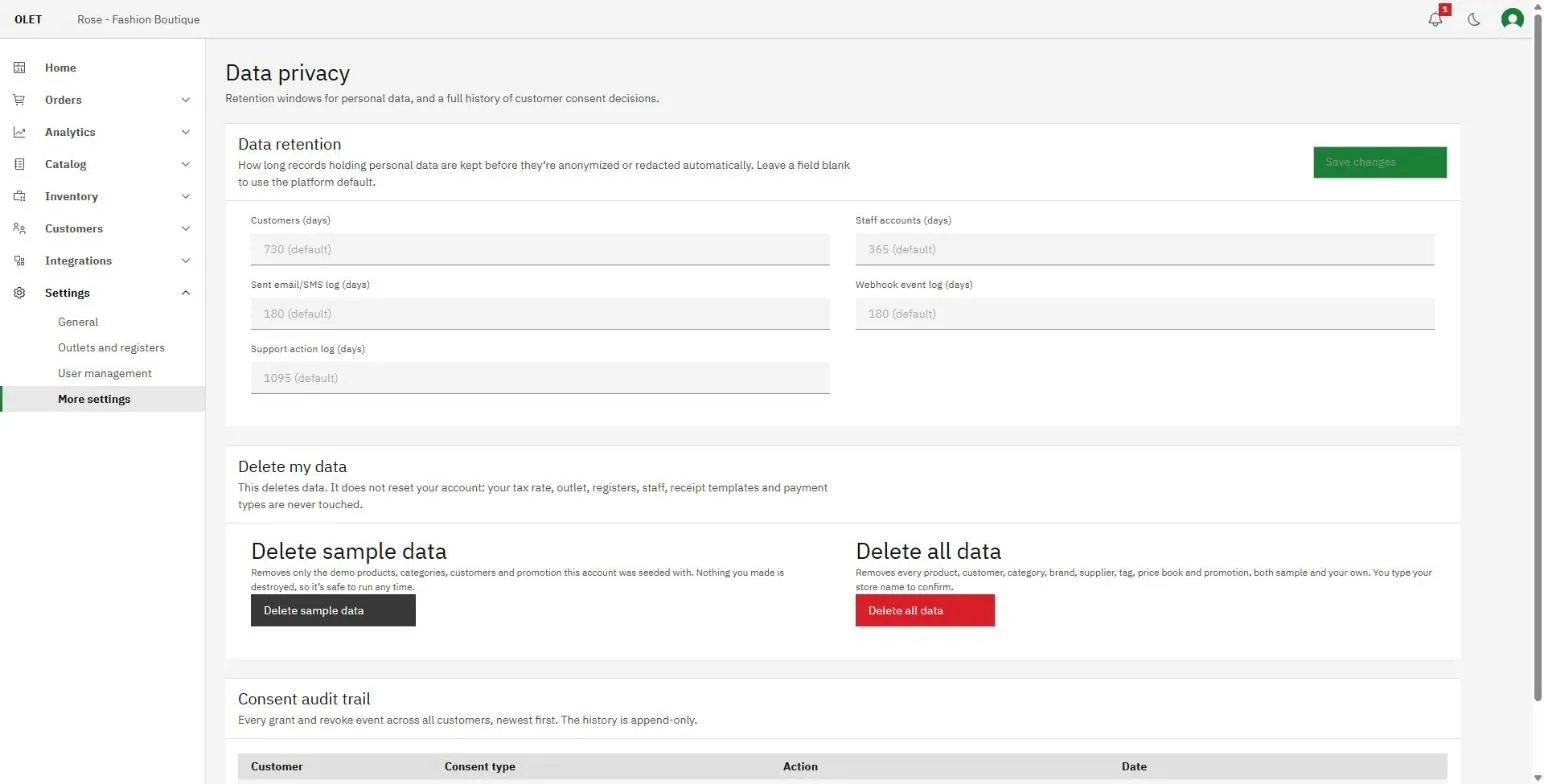
Section titled “The history of every consent decision”Settings > Data privacy has a Consent audit trail: every grant and every revoke, across all your customers, newest first, with the customer, what changed, and when. It is append-only, so it is the evidence that you acted on a request rather than a claim that you did.
That page also holds your Data retention windows, which are how long records carrying personal data are kept before OLET clears them for you. Leave a field blank and the platform default applies.
Exporting more than one customer
Section titled “Exporting more than one customer”The Export button above the customer list writes your whole list to a CSV, and the dialog lets you leave columns out: name, company, email, phone, address, date of birth, and the marketing and consent columns are each a checkbox. Uncheck what a recipient does not need and the file goes out without it. The customer code, the group, and the record dates are always in the file so rows stay identifiable.
Collect it from Settings > Activity under export.customers. Like the single-customer bundle, it is kept for 7 days.
Who can do this
Section titled “Who can do this”Erasing a customer and exporting their data need the “Add, edit and delete customers” permission. A role without it sees Delete customer switched off, and the Privacy tab shows “Managing consent and exporting a customer’s data require the “Add, edit and delete customers” permission.” in place of the controls, rather than buttons that would be refused.
Settings > Data privacy and the retention windows on it belong to admins. See Add your team.
If it goes wrong
Section titled “If it goes wrong”- The download link does nothing. The file has passed its 7 days. Start the export again.
- The export failed. Nothing was sent anywhere. Start it again from the same tab.
- You cannot find the Privacy tab. It only appears on a customer who already exists, never while you are creating one.
- The erase was refused. The built-in walk-in customer cannot be erased. Check you opened the right record.
- You erased the wrong person. It cannot be reversed. Create a new record for the customer going forward.