Add your team
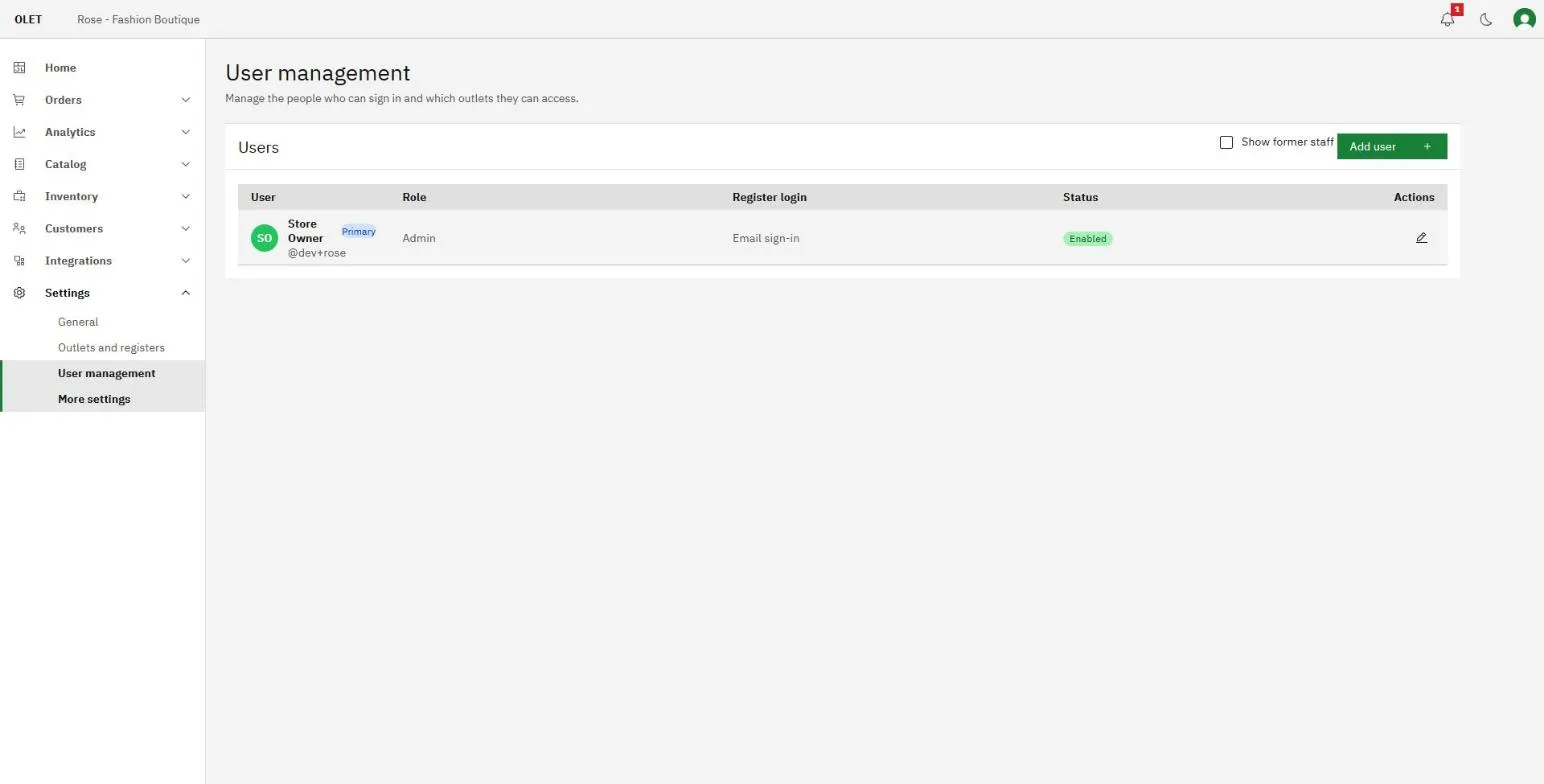
Everyone who uses OLET gets their own record, so every sale, refund, and price change has a name on it. You add people in Settings > User management.
Add someone
Section titled “Add someone”- Go to Settings > User management.
- Select Add user.
- Fill in their First name, Last name, and Email. For a cashier the Phone is required too.
- Choose their Role. There are three, and the next section says what each one can do.
- Leave Enabled ticked so they can sign in.
- Under Register access, pick the outlets whose registers they can sign in at. A cashier needs at least one. For a manager, leaving it empty means back-office only. Admins can sign in at every register, so they have no picker.
- Select Add user.
A box then tells you what happens next. An admin or a manager gets an emailed invite. A cashier gets emailed setup steps and finishes at a register.
What each role can do
Section titled “What each role can do”Cashier. Works on the register only. A cashier cannot open the back office at all. On the register they can sell, add and edit customers, look up products and customers, apply an order discount, sell a gift card, mark a sale tax exempt, park a sale, open and close the till, count cash, set up a receipt printer, and arrange the quick key grid. They cannot refund or override a price unless you turn those on for them. You can also give them the Reports screen with View reports, which is off by default.
Manager. Works on the register and in the back office. On top of everything a cashier does, a manager can process refunds, override prices, run the catalog (products, categories, brands, suppliers, price books, tags, product sets, promotions, and gift cards), run inventory (purchase orders, transfers, supplier returns, and stock adjustments), manage customers and customer groups, design receipts, run exports, manage devices, and read the activity log. A manager cannot manage users, change store settings, or use the privacy tools.
Admin. Everything a manager can do, plus the things that belong to the owner of the business: User management, everything under Settings, billing, imports, and the data privacy tools.
If a role is close but not exact, an admin can turn individual capabilities on or off per role in Settings > Permissions.
Who sees the dashboard
Section titled “Who sees the dashboard”Home, the dashboard, is never visible to a cashier. Admins always see it. Whether managers see it is your choice: turn Show dashboard to managers on or off in Settings > General. Sales history has its own toggle in the same place and works the same way.
How your team signs in
Section titled “How your team signs in”Nobody has a password.
- Admins and managers sign in with their email address, or a username if you set one, and a one-time code sent to their email. In the back office they also type the Store ID from Settings > General first. See Sign in to the back office.
- Cashiers choose their own username and 6 digit PIN at a register, after entering a code sent to the email on their record. You never see the PIN, which is what makes the name on a sale mean something.
If a cashier is locked out or has forgotten their username, open Settings > User management and use Reset login on their row. They then set a new username and PIN the same way. If their email address is bouncing, the list says so, and you have to fix the address before a reset can work.
When someone leaves
Section titled “When someone leaves”Open their row and remove them. You can’t remove or disable yourself. They stop being able to sign in, but their name stays on the sales they rang up, so your history still adds up. Tick Show former staff to see people you have removed.