Import products from a CSV
The product import creates products that are new to you and updates the ones you already have, one row at a time, from a plain CSV file. It walks you through three steps: upload the file, match its columns to OLET’s fields, and review a preview before anything is saved.
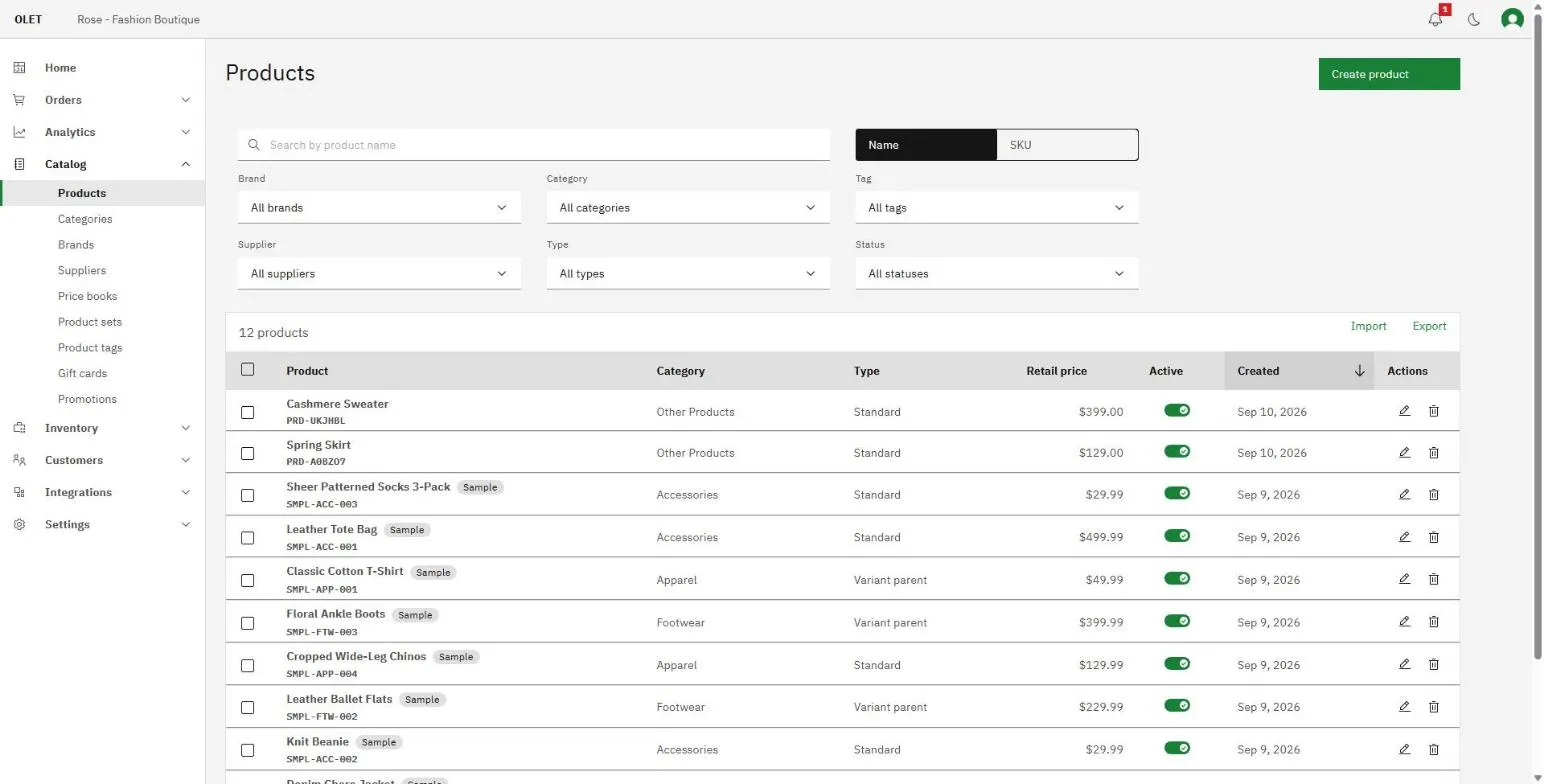
Go to Catalog > Products, open the Import menu above the table, and choose Import products. You need the Run imports permission. Without it the page says “You can’t import products” and asks you to get an admin to give you the permission.
Step 1: Upload file
Section titled “Step 1: Upload file”Drag a CSV file onto the page, or select it to choose one from your computer. OLET reads it right away and shows the file name, how many products it holds, and how many columns.
Select Remove to pick a different file.
OLET refuses a file before the next step if:
- It is larger than 50 MB. The message says “This file is larger than 50 MB. Split it into smaller files and upload each one.”
- It is not saved as UTF-8. The message tells you to save it as “CSV UTF-8” in your spreadsheet app and upload it again. Accented letters would otherwise come out wrong.
- It has no products in it, only a header row or nothing at all.
- It cannot be read as a CSV. The message is “We couldn’t read this file. Check that it’s a CSV file and try again.”
Don’t have a file yet?
Section titled “Don’t have a file yet?”The Upload step, and the Import menu on the product list, both offer two downloads:
- Download template is a file with only the heading row. Every OLET field is a column, plus a pair of stock columns for each of your outlets.
- Download template with sample data has the same headings and one example product for each pattern: a standard product, a variant parent with two variants, a composite, a product with weight and size, and an inactive product. Delete the example rows and keep the pattern you need.
You can also start from an export. See Export your products.
Step 2: Match columns
Section titled “Step 2: Match columns”If every column heading in your file is one OLET already knows, such as a template or an OLET export, this step is skipped and you go straight to Review.
Otherwise OLET lines your columns up with its own fields for you. It recognizes the headings other systems commonly use, for example a Price or Variant Price column for Retail price, or Vendor for Brand. The page says how many fields will be filled from your file.
The table has three columns:
- Olet field is the field OLET can fill.
- Column in your file is a list of your file’s columns. Pick another one, or pick Don’t import to leave the field empty.
- Example shows the first value found in that column, so you can tell you picked the right one. A column with nothing in it shows “No values”.
Three fields are marked (required): SKU, Name and Retail price. Until each has a column, the page shows “Choose a column for each required field” with “Still needed:” and the missing names, and you cannot continue.
Below the table, a section reading, for example, “2 columns from your file won’t be imported” lists every column of yours that feeds no field.
The fields you can match are:
- The basics. SKU, Name, Description, Retail price, Cost, Loyalty amount, Active, Track inventory, and the two account codes.
- Brand, Supplier, Supplier code, Category, Tags.
- Barcodes. Barcode (UPC), Barcode (EAN), ISBN, ITF, JAN and Custom code.
- Size and weight. Weight, Weight unit, Length, Width, Height and Dimension unit.
- Image URL.
- Product type, Variant parent SKU, the Variant option name and value pairs, and Components. See “Variants and composites” below.
- Stock at and Stock adjustment at each outlet, and Stock unit cost. See “Setting stock per outlet” below.
Category levels
Section titled “Category levels”When you match Category, a Levels separated by list appears. Pick the character your file uses between levels: / (slash), > (greater than), | (bar), : (colon) or , (comma). The Example column shows the result with the levels joined by a slash. OLET keeps three levels at most. If a row has more, Review warns you which levels are kept.
Step 3: Review
Section titled “Step 3: Review”OLET checks your file without saving anything and reports what would happen. While it checks you see “Checking your file”. It checks the first 1,000 rows of a large file, and says so: “We checked the first 1,000 of 4,500 rows.”
The result is a line such as 12 new · 30 to update · 5 unchanged · 2 skipped:
- new rows create a product.
- to update rows change a product you already have.
- unchanged rows match what OLET already holds, so nothing is written.
- skipped rows cannot be imported. When there are skipped rows, Download skipped-rows report appears so you can read why.
If every row already matches, you see “Nothing to change. Every row matches what’s in Olet.” If no rows can be imported, the button stays off and the line reads “Nothing to import”.
Review can also show notes about your data:
- Some products share a name. For example, a name that is on 3 rows. Each row is still imported as its own product.
- Some categories have more than 3 levels. It says how many rows are affected and what one example becomes.
- A line about images: how many products have an image URL, and that images are added after the products are saved.
- A line when a row lists several image URLs: the first one is used.
A table at the bottom shows the first 10 rows as OLET will store them, with a caption such as “First 10 of 4,500 rows”.
When you are ready, select Import 42 products. For a file longer than 1,000 rows the button reads Import 4,500 rows instead, because the preview only covered part of the file. Use Back to change the matching and OLET checks again.
The import then runs and the page reports how it ended:
- Your products are imported, with a summary of what changed.
- Imported, with some rows skipped. The good rows went in. Select Download skipped-rows report.
- The import was stopped. “Products added before it stopped were kept.”
- Still importing. Large files can take a few minutes. Check Settings > Activity for the result.
- The import didn’t finish. The message says why. If the file would take you over your plan’s product limit, the message says how many products it would create and what your limit is, ends with “Upgrade to add more.”, and nothing is imported.
Finish with View products. If you came from the setup guide the button reads Back to setup guide.
How rows are matched
Section titled “How rows are matched”SKU is the key. For each row, OLET looks for a product with that SKU:
- Found exactly one, the row updates that product.
- Found nothing, the row creates a new product.
- SKU is blank, the row is skipped: “This row has no identifier, so it was skipped.”
- The same SKU appears twice in your file, both rows are skipped: “Duplicate: this row already appears earlier in the file, so both rows were rejected.”
A blank cell means “leave this alone”, so a file that holds only SKU plus the fields you want to change is fine. To empty a field on purpose, put <clear> in the cell. You can clear a description, but not a name, SKU or retail price, and not an image.
Creating a product needs a Name and a Retail price on the row. Updating one does not.
The id, created_at, and updated_at columns are ignored on import. OLET owns those.
Product type is set only when a row creates a product. On a row that updates an existing product the type is ignored, because a product’s type is permanent.
What OLET does to your data
Section titled “What OLET does to your data”- Description. If the cell holds HTML, such as a description exported from a web store, OLET stores it as plain text.
- Barcodes and SKUs. OLET cleans them up, so a leading apostrophe added by a spreadsheet is dropped. A barcode with no usable letters or digits skips the row, and a barcode already used by another product skips it too, because the register could not tell the two apart.
- Names for other things. Brand, supplier, tags and category are matched by name, exactly, including capitals, after trimming spaces. Anything missing is created.
apparelandApparelare two categories, so keep your spelling consistent or you will grow duplicates. Tags go in one cell, comma separated. - Images. The image address must start with
https://. If a cell lists several, the first is used. Images are fetched after the products are saved. One that cannot be downloaded does not stop the product: it appears in the report as “image not added” with the reason. - Size and weight units. Weight unit is
g,kg,lboroz. Dimension unit ismm,cm,inorft.
Variants and composites
Section titled “Variants and composites”The Product type column takes the same words you see in the product list: standard, variant parent, variant or composite. A blank type means standard.
- A variant parent holds no stock and no options of its own.
- A variant needs a Variant parent SKU and at least one option name and value pair, filled in order starting with option 1. The parent can be further down the same file. Leave the name blank and OLET builds it from the parent and the options.
- A composite lists its Components in one cell as
SKU:quantity, separated by commas, for exampleMUG-001:1, CARD-001:2. Quantities are whole numbers, every component must already exist or be in the same file, and a composite cannot contain another composite.
A variant parent’s option names are fixed once variants exist, and a variant’s option values cannot be changed by import. Edit those on the product. A parent can have up to 200 variants. See Product variants.
An export writes these same words, so an exported file with variants imports back in.
Setting stock per outlet
Section titled “Setting stock per outlet”Each of your outlets has a pair of columns: <outlet>.qty and <outlet>.qty.adjustment_type, which appear as Stock at and Stock adjustment at the outlet in the Match step. Read them as a pair. The first holds the number, the second holds a direction word, and the direction word decides what the number means.
main-street.qty |
main-street.qty.adjustment_type |
What happens at Main Street |
|---|---|---|
12 |
blank | On hand is set to 12 |
5 |
increase |
5 is added to on hand |
10 |
decrease |
10 is taken off on hand |
| blank | blank | Stock is left exactly as it is |
| blank | increase |
The row is skipped: a direction with no amount |
Use the words, not a plus or minus sign. A cell starting with a sign makes a spreadsheet think you are writing a formula.
A quantity on a composite, a variant parent, or a product that does not track inventory is ignored, and the report says so. The row’s other fields still import.
The trap worth knowing. An exported file already has today’s stock sitting in every .qty cell. If you type increase beside a cell that reads 40, you are asking OLET to add 40, not to keep 40. OLET adds the stock and notes “adjusted by the exported quantity” in the report as a warning, in case that was not what you meant. Replace the number with the amount you want to add first. If you only want to change some outlets, clear both cells for the others and they will be left alone.
The column name comes from the outlet’s name, so renaming an outlet renames its column. Always start from a fresh template or export rather than reusing last month’s file.
Setting the cost of added stock
Section titled “Setting the cost of added stock”Match a column to Stock unit cost to say what the added units cost, in dollars, for example 4.20. The export does not include it, so you add the column yourself.
- With a blank direction, the cost becomes that outlet’s average cost, whether the number goes up, goes down or stays the same.
- With
increase, the cost is blended into the outlet’s average cost, weighted by how many units you add. - With
decrease, the cost is ignored. - To give two outlets different costs, run two imports. In each one, fill only that outlet’s
.qtycolumn and leave the other outlets’ cells blank. - A blank cost on a blank direction keeps the outlet’s average cost, or uses the product’s supply price when the outlet has no average yet and the quantity changes. If the quantity stays the same, nothing changes.
- A negative cost, or one with more than two decimal places, skips that row.
The skipped-rows report
Section titled “The skipped-rows report”The report is a CSV named import-report.csv with one line per row that needs your attention: the row number, the SKU, a kind and a reason. The kind tells you how serious it is:
- skipped, the row was not imported.
- warning, the row was imported, with something worth checking.
- note, a preview of what the import would do, such as creating a brand that does not exist yet.
Fix the skipped rows in your file and import just those again. A skipped row never stops the rest of the file.
Watching it run
Section titled “Watching it run”Every import, including the check you see in Review, is recorded in Settings > Activity as import.products. You can carry on working while a large import runs. The status there reads:
- queued or active, still going. You can cancel it from here, and rows already written are kept.
- completed, every row went in.
- completed with errors, some rows went in and some were skipped. Select the report icon on the row to download the report.
- failed, nothing usable happened. The file itself was the problem.
If it goes wrong
Section titled “If it goes wrong”- The Next button is off on Match columns. A required field has no column yet. Read “Still needed”.
- The Import button is off on Review. The check found nothing to import, or it is still running.
- A row says the type is not valid. Use
standard,variant parent,variantorcomposite. - A row says a variant needs a parent. Fill Variant parent SKU on every
variantrow. - A category is “too deep”. This happens when you skip the Match step with an OLET-format file. Keep categories to three levels separated by a slash.
- A code is already used by another product. A barcode can only belong to one product.
- You have reached your product limit. The whole import is refused, not partly done. Check Settings > Billing to see what your plan includes.
What next
Section titled “What next”- Get a file in the right shape: Export your products
- Edit one product by hand: Create a product
- Variant families: Product variants