Gift cards hold a balance a customer can spend with you later. This page is where you issue them in bulk, find one, and fix one.
This feature depends on your plan. Check Settings > Billing to see what your plan includes.
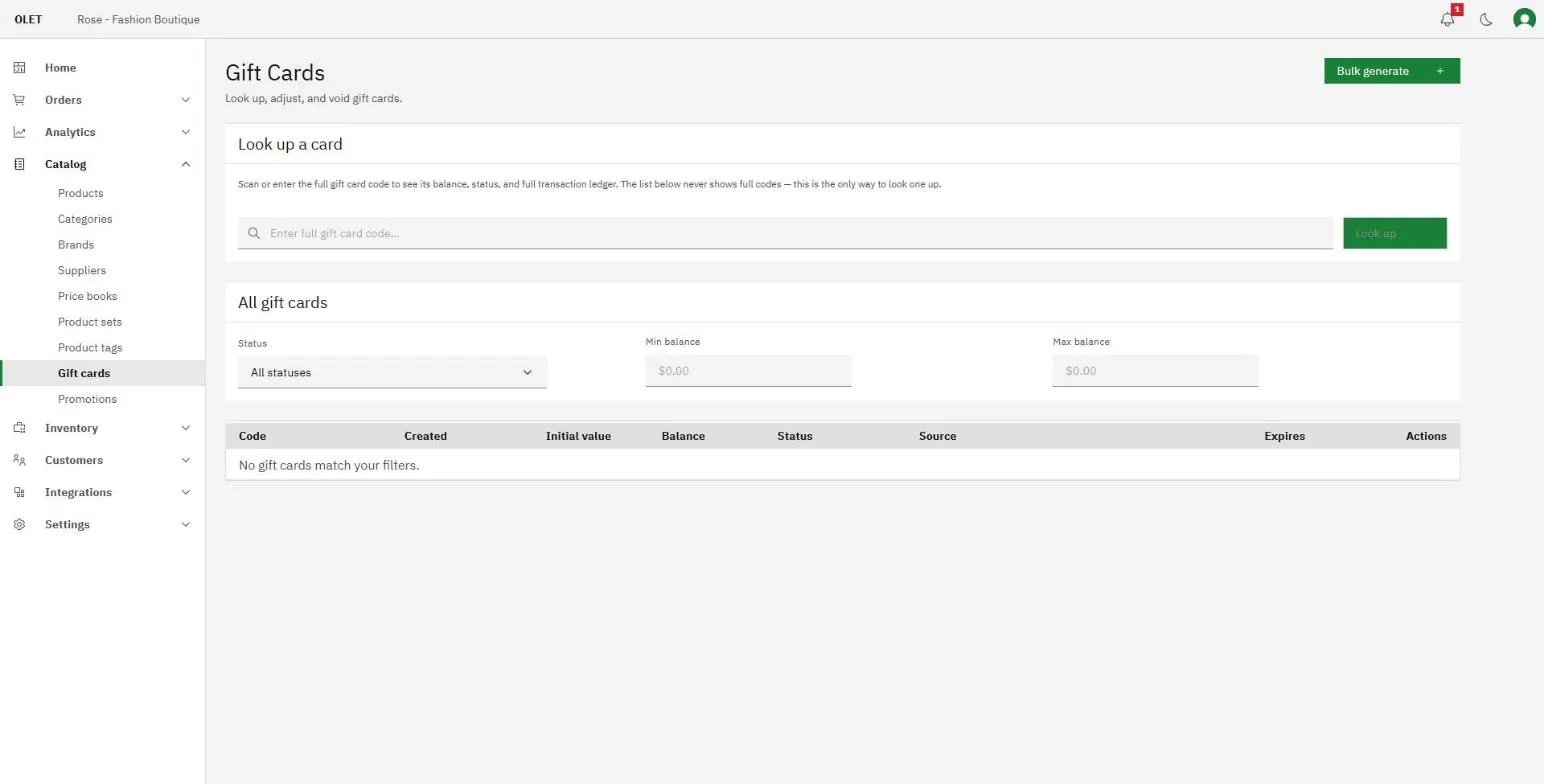
Go to Catalog > Gift cards. Most cards get created by selling one at the register, so this page is mainly for the batch you order printed and for the day a customer has a problem. Selling and redeeming happen on the register: see Gift cards on the register.
What a card’s status means
Section titled “What a card’s status means”- Inactive. The code exists but no money has been put on it yet. Preprinted and bulk generated cards start here.
- Active. Funded and spendable.
- Redeemed. The balance has reached zero.
- Void. Canceled by hand and no longer accepted.
- Expired. Past its expiry date. A card stops working the moment it expires, not when the list catches up, so a card can be spent out for a few hours before the status column agrees.
Source says how the code came about: autogen if OLET generated it, manual if you supplied it.
Issue a batch of cards
Section titled “Issue a batch of cards”Bulk generate is for administrators, and it covers both the cards you have printed and the ones you want OLET to invent.
- Select Bulk generate.
- Either set a Count and let OLET generate the codes, or paste your Preprinted codes, one per line or comma separated.
- Start the job and wait for it to finish. OLET reports how many were requested, created, and skipped, and offers a report on the skipped ones.
- If OLET generated the codes, download the code list straight away. That download is offered once and the link is short lived. OLET never stores a code in a form it can show you again.
Every card in a batch is created Inactive and unfunded. It becomes Active with a balance when it is sold or loaded at the register, which is what stops a stolen sheet of blanks from being worth anything.
Look up a card
Section titled “Look up a card”Type the full code into Gift card code under Look up a card. Partial codes do not work, because OLET does not keep the code in a form it can search on.
The result shows the balance, the initial value, the status, the source, the expiry, and the full transaction ledger for that card. The list itself only ever shows the last four characters of a code.
Adjust a balance
Section titled “Adjust a balance”Select Adjust balance on a card, enter an Amount, and add a Note saying why. A positive amount adds to the balance and a negative amount takes from it, so 10.00 and -5.00 are both valid. The note is what you will be reading back six months from now, so write a real one.
A card that has already expired cannot be adjusted in either direction.
Void a card
Section titled “Void a card”Void card cancels it. Add a Note first. A void card is refused at the register from then on, and voiding cannot be undone, so use it for a card that was reported stolen or issued in error.
Print a card slip
Section titled “Print a card slip”Select Print card on a card, then Print in the dialog that opens. This is the way to replace a slip a customer lost.
Two things are worth knowing. Printing recovers the live code and records that you asked for it, so treat it the way you would treat handing over cash. And it is not offered for a spent or void card, because those codes are deliberately gone.
What is set elsewhere
Section titled “What is set elsewhere”Whether you sell gift cards at all, the minimum and maximum amounts, the preset buttons the cashier sees, expiry, and the slip that prints with a sale all live on Settings > Gift cards, not here.
Two of those settings interact. Expiry and reload are mutually exclusive: turn expiry on and cards expire a fixed number of days after they are issued but cannot be topped up, turn it off and cards never expire and can be reloaded. Expiry is fixed at the moment a card is issued, so changing the setting later does not move the date on a card that already exists.
The minimum and maximum bound what a customer can load. They deliberately do not bound a refund paid out to a gift card, because that is money the customer already gave you.
If it goes wrong
Section titled “If it goes wrong”- The register will not take a card. Check the status. Inactive means it was never funded, void means it was canceled, and expired means the date has passed.
- Lookup finds nothing. You need the whole code, exactly as printed, though spacing and case do not matter.
- Print card is missing. The card is spent or void, and its code no longer exists to print.
- A gift card sale is refused at the till. The amount is outside the minimum and maximum on Settings > Gift cards, or a preset there sits outside that window.
- Gift cards are never discounted. No promotion and no price book can reach a gift card line, and the register refuses a percentage discount on one.
Leave the gift card payment type named as it is. OLET recognizes gift card tender by that name, so renaming it stops cards being accepted as payment.