Create a product
Creating a product takes two answers: what kind of product it is, and what it is called and costs. Everything else can wait until after it is saved.
In the back office, go to Catalog > Products and select Create product.
Step 1, pick the product type
Section titled “Step 1, pick the product type”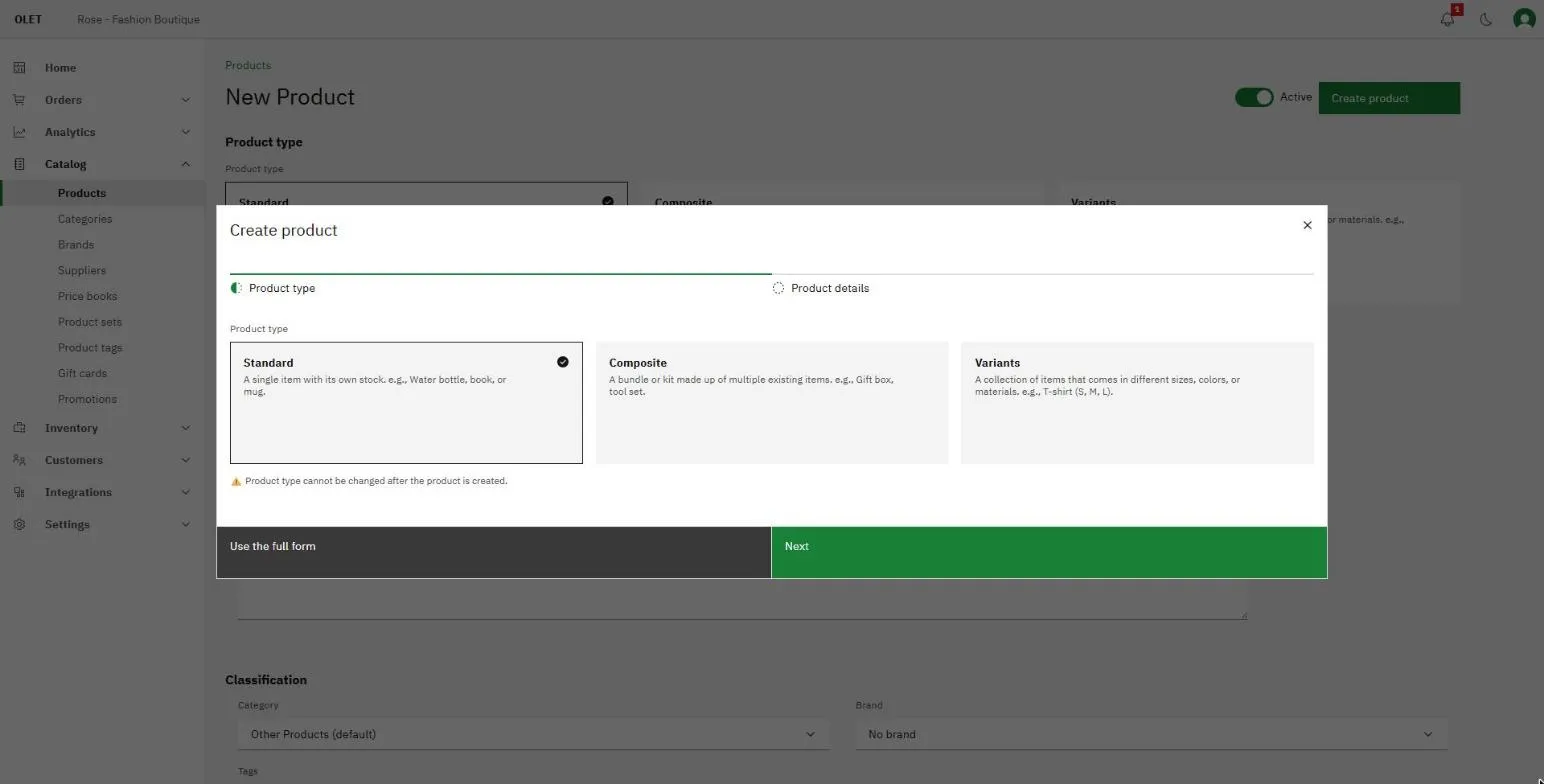
- Standard, a single item with its own stock. A water bottle, a book, a mug.
- Composite, a bundle or kit made up of items you already sell. A gift box, a tool set.
- Variants, a collection of items that comes in different sizes, colors, or materials. A t-shirt in S, M, and L.
Choose carefully. The product type cannot be changed after the product is created. If you get it wrong, delete the product and create it again.
Select Next.
Step 2, name it and price it
Section titled “Step 2, name it and price it”Two fields are required:
- Product name
- Retail price
SKU is optional. Leave it blank and OLET generates one for you. Whatever you type here is permanent: SKU can only be set when the product is created.
Select Create product. OLET saves it and opens the full product page so you can carry on.
If you would rather fill everything in at once, select Use the full form instead of Next. It is the same product, with the same fields, on one page. Anything you have already typed comes with you.
Fill in the rest
Section titled “Fill in the rest”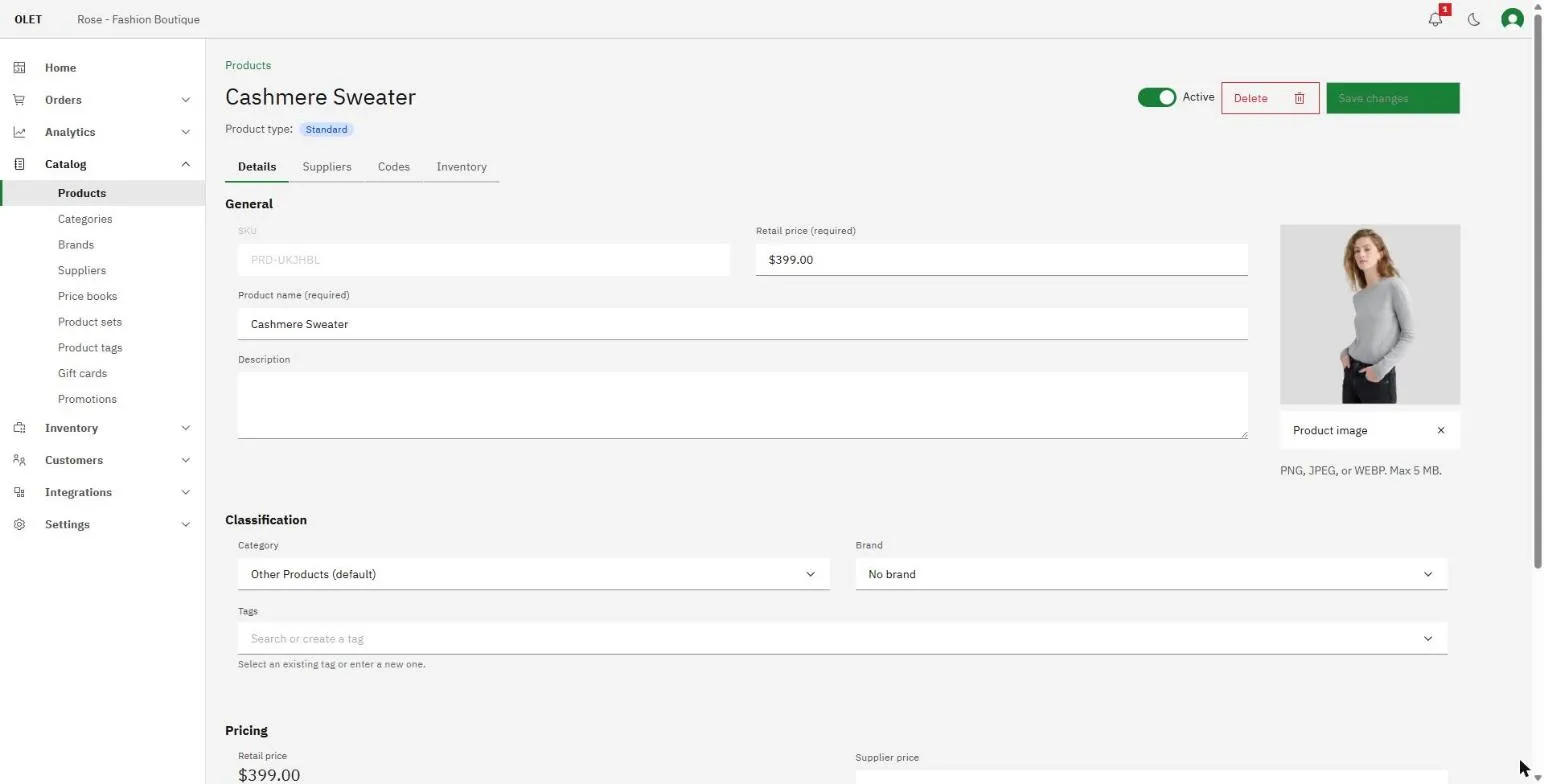
A saved product has four tabs. The last one is named for the type of product you created: Inventory for a standard product, Components for a composite, Variants for a variant family.
Details holds the product itself, in four sections:
- General: SKU (read only now), retail price, product name, description, and the product image. Drag an image in or select the upload area to browse.
- Classification: category, brand, and tags. Tags accept an existing tag or a new one you type, and save as soon as you add one.
- Pricing: supplier price (the default cost on a new purchase order), plus the Xero sales and purchase account codes if you use them. Retail price is shown here for reference and is edited under General, so there is only ever one place to change it.
- Weight and dimensions, collapsed until you need it.
Suppliers links purchase sources to the product, each with its own supplier code and supplier price, and one marked primary.
Codes is where scannable identifiers live, such as a barcode. Add one per code type. A code has to be unique across your catalog: two products cannot share a barcode, because the register would not know which one you scanned.
Select Save changes at the top of the page when you are done. The button stays disabled until something has actually changed.
Components of a composite
Section titled “Components of a composite”On a composite, the Components tab is where you search for the products that make up the bundle and set how many of each. Under the table, Total shows the units and their value, and a Calculated cost line for each outlet shows what the bundle costs there, built from its components. An outlet with no cost to calculate shows a dash.
Stock and tax
Section titled “Stock and tax”Open the Inventory tab. Track inventory is on by default, which gives the product a stock record at every active outlet.
Each outlet gets its own section, with the quantity in stock shown beside its name:
- Adjust stock opens a dialog: pick a reason, type a quantity, and save. The reason decides whether the quantity is added or removed, and the dialog says which under the field. When the reason adds stock, a Unit cost field appears, starting at the outlet’s current average cost. Change it to say what the added units cost and OLET blends it into this outlet’s average cost. Clear it and OLET uses the product’s supplier price, or records no cost if there is none. You can also set Adjusted on to a past date and add a Note.
- Tax override sets a tax rate for this product at this outlet. Rates show as percentages, for example “Sales tax (8.25%)”. Leave it on Use outlet default so the product follows the outlet’s own tax rate.
- Reorder method sets a replenishment rule: follow the outlet’s own default, turn reordering off, or set a fixed quantity or a minimum and maximum level for this product alone. See Reorder list.
- Current cost (WAC) is the weighted-average cost OLET has calculated from what you actually paid. It is read only.
Turning Track inventory off writes off all remaining stock to zero, so OLET asks you to confirm. Leave it off only for things you never count, such as a service.
To set opening stock for many products at once, use the CSV instead. See Import products from a CSV.
If it goes wrong
Section titled “If it goes wrong”- A product already uses this SKU. SKUs are unique across your catalog. Pick another one, or leave the field blank and let OLET generate it.
- Retail price is required. Step 2 will not finish without it. Zero is a valid price.
- You have reached your product limit. This feature depends on your plan. Check Settings > Billing to see what your plan includes.
- Someone else saved first. Another person changed this product while you had it open. Select Reload, then make your change again.
What next
Section titled “What next”- Give it variants: Product variants
- Bulk-create many at once: Import products from a CSV