Customers overview
Your customer list is every person you have on file, with their contact details, their group, and their code.
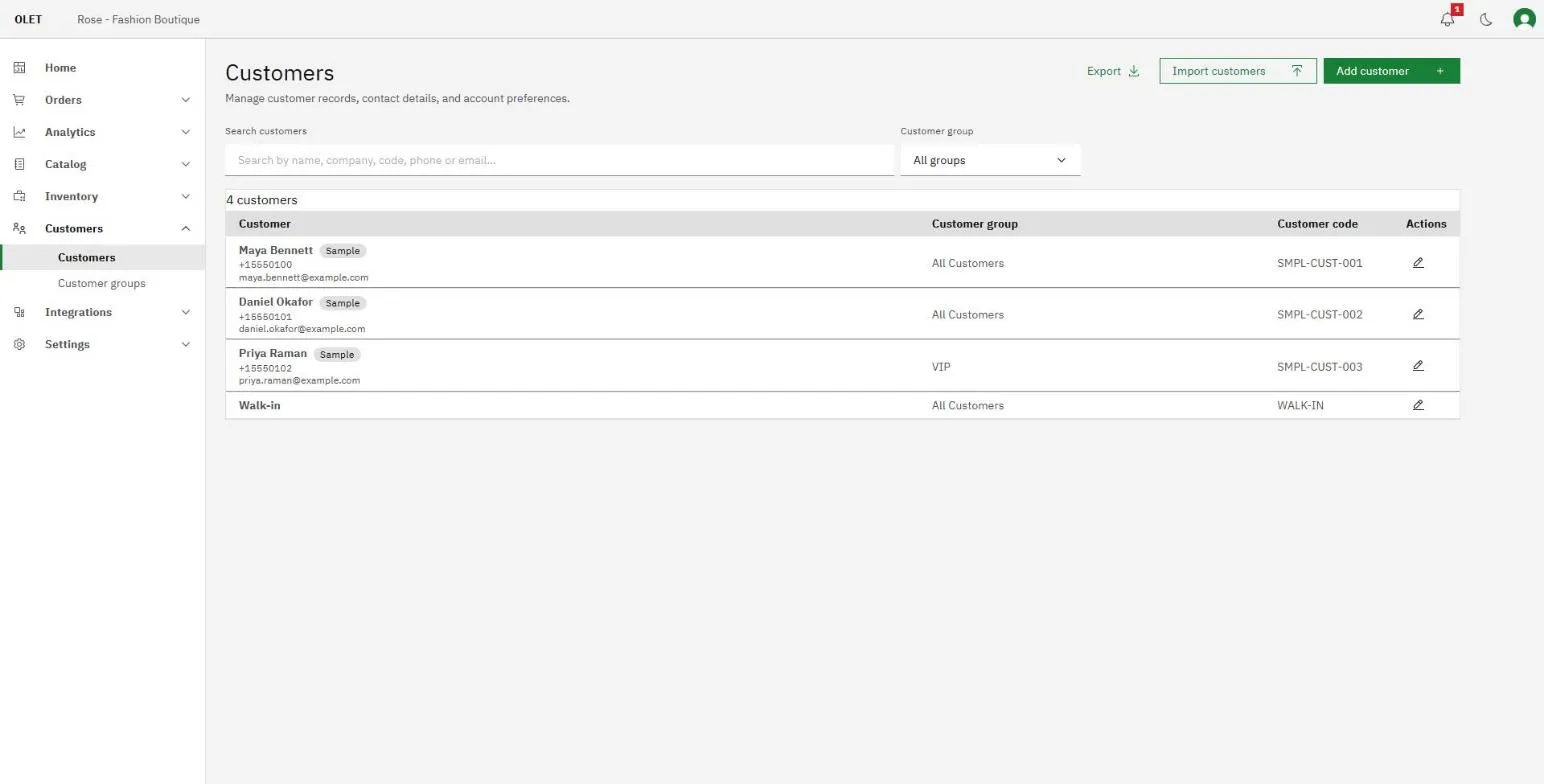
Go to Customers > Customers. Each row shows the customer’s name, their phone and email underneath it, the group they are in, and their customer code.
Find someone
Section titled “Find someone”Type into Search customers. It matches on name, company, code, phone, and email, so any one of those finds the person.
Type at least two characters. One character searches nothing and the field says so, because a single letter matches most of a real customer list and is never what anyone meant.
The search runs against your whole list, not against the rows on screen, so a customer buried thousands of rows down is still found by typing their phone number.
Filter by group
Section titled “Filter by group”The Customer group dropdown beside the search narrows the list to one group. It starts on All groups, which is no filter at all. See Customer groups.
The search and the group filter work together. Pick a group and search inside it.
Reading the list
Section titled “Reading the list”Above the table OLET says how many customers you have. When there are more than fit in one load it says Showing 50 of 900 customers instead, and Load more at the bottom brings in the next batch.
If nothing matches you get No customers match your search, which is different from No customers yet. The first means your list has people in it and none of them match what you typed. Clear the search and the filter to see everything again.
A Sample tag beside a name means that customer came with the demo data your account was seeded with, not from your own trade.
What a customer record holds
Section titled “What a customer record holds”Open a customer with the pencil on their row. The record is laid out in tabs.
- Basic. First name, last name, phone, email, gender, and date of birth. First name is required, and so is a phone or an email.
- Details. Customer code, customer group, company name, tax ID, website, mobile, and a free-text note.
- Address. Two address lines, country, city, state or province, and a ZIP or postal code.
- Settings. Three switches: Enable loyalty, so the customer earns loyalty points on purchases, and Do not email and Do not SMS, which exclude them from marketing on that channel.
- Custom. Four fields of your own, for anything the rest of the record has no place for.
- Privacy. Only on a customer who already exists. This is where you send someone their own data or erase their details. See Customer data requests.
Opening a customer from the customer report brings you to this list with their record already open. If that customer no longer exists you see “Customer not found” and “That customer no longer exists.”
The customer code is the short identifier that appears on the list and travels with the customer into a CSV export. OLET generates one when you leave it blank.
Who can open this
Section titled “Who can open this”Cashiers cannot open the back office at all, so the customer list is for managers and admins. On the register they look customers up from the sell screen instead. See Add a customer to a sale.
A role that can read customers but not change them still sees the whole list. Add customer, Import customers, the pencil on each row and Delete customer are switched off, with the line “You don’t have permission to add, edit or delete customers.” beside them. If you open a customer anyway, every field is read only and Save changes is off. The Privacy tab says managing consent and exporting a customer’s data require the “Add, edit and delete customers” permission, rather than offering buttons that would be refused. Roles are set in Settings > Permissions. See Add your team.
If it goes wrong
Section titled “If it goes wrong”- A customer you know exists does not come up. Search on their phone number or their customer code rather than a name that may be spelled differently on the record.
- The group column is empty or the filter is short. OLET tells you when the group list could not be loaded. Reload the page.
- The list will not load. Use Retry on the table.