Outlets and registers
An outlet is a place you sell from or hold stock in: a shop, a market stall, a warehouse. A register is a till inside an outlet. Stock levels are counted per outlet, and every sale is rung on a register, so this page is the shape of your business as OLET sees it.
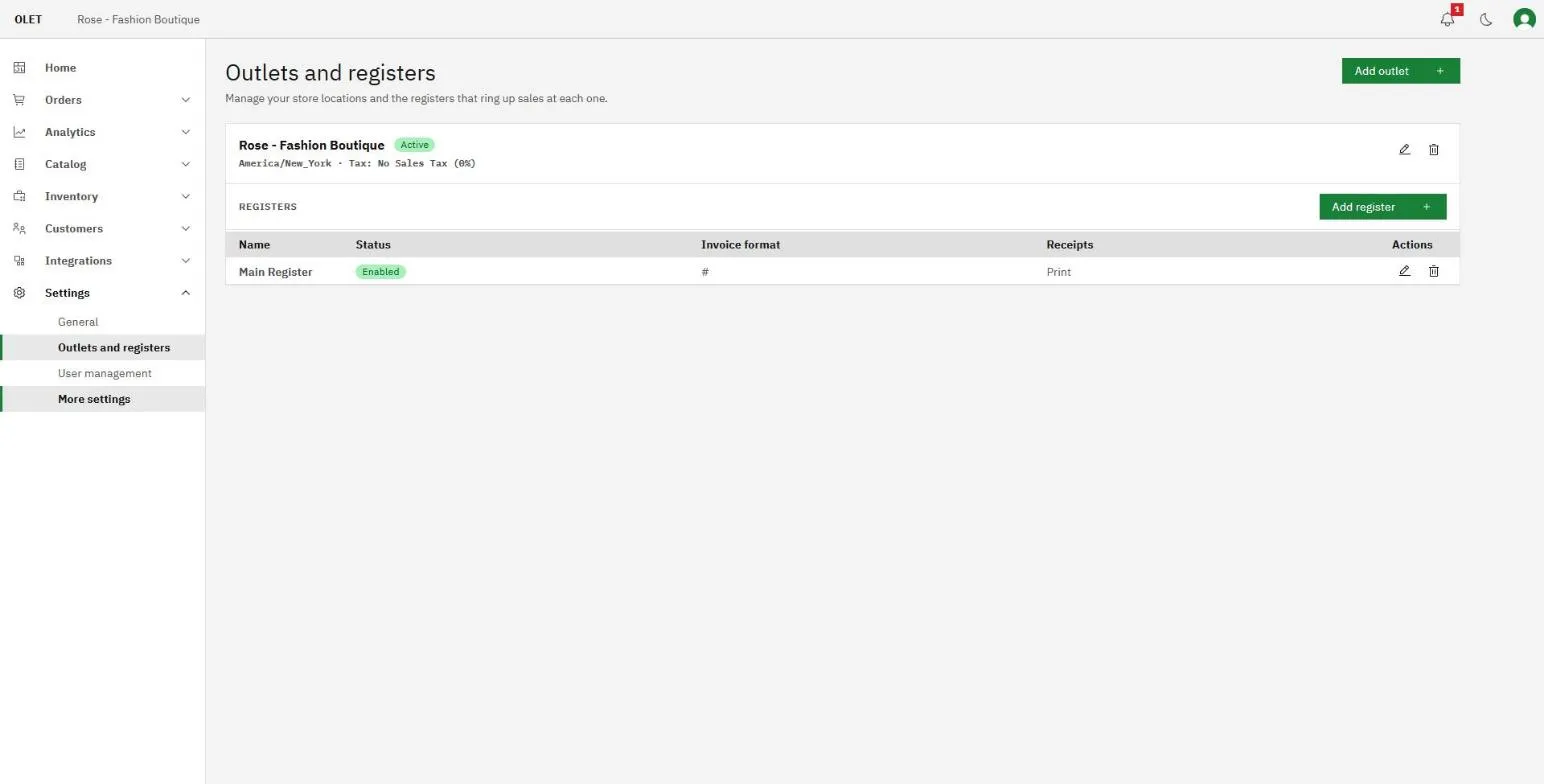
Go to Settings > Outlets and registers in the back office. The page is titled Outlets and registers, and each outlet is a card with its own registers listed underneath.
Outlets and registers beyond what your plan includes are billable, and a register is billable from the moment you create it, whether or not a device is ever paired to it. The dialog tells you before you add one. There is more in Account and billing > Outlets, registers, and usage charges.
Add an outlet
Section titled “Add an outlet”- Select Add outlet at the top right.
- Enter the Outlet name. This is what staff pick from and what appears on stock and reporting.
- Leave Status as active unless you are setting up somewhere that is not trading yet.
- Pick a Time zone. Each outlet keeps its own, so a second location in another zone dates its sales correctly.
- Pick a Default tax. Every product sold here uses this rate unless the product overrides it. See Sales tax.
- Fill in the Phone, Email, and address fields. These are the outlet’s own contact details.
- Under Reorder default, leave Default rule as No reorder, or choose Fixed quantity and set a Reorder point and an Order quantity. This is the rule any product left on “Use outlet default” follows.
- Select Add outlet.
The time zone and the default tax are both required. The rest of the address is worth completing anyway, because it is what a customer needs if they want to come back.
To change an outlet later, select the edit icon on its card. Changing the reorder default on an outlet that already has products using it asks you to confirm first, and tells you how many products the change affects.
Add a register
Section titled “Add a register”- On the outlet’s card, select Add register.
- Enter the Register name, for example
Front counter. - Leave Enabled on. Turning it off keeps the register but stops anyone selling on it.
- Set the receipt numbering and the end-of-sale options below.
- Select Add register.
A register is a slot, not a device. Pairing an iPad or iPhone to it is a separate step, covered in Pair your first register.
When you edit an existing register, Enabled and the three end-of-sale toggles save the moment you switch them, with no need to select Save changes. Everything else on the dialog, like the name and receipt numbering, still waits for Save changes.
Receipt numbering
Section titled “Receipt numbering”Each register numbers its own receipts. Receipt prefix and Receipt suffix are stuck straight onto the number with nothing added in between, and OLET saves them in capitals. The number itself is padded to six digits, and the dialog shows you the result under Next receipt on this register. Watch that line as you type and you will not have to guess.
Next receipt number is the live counter. It moves on its own every time this register rings a sale, so only touch it if you actually want to move the sequence, for instance to carry on from your old till. If you leave it alone, OLET leaves it alone.
At end of sale
Section titled “At end of sale”- Print receipt automatically prints to the register’s paired printer as soon as a sale finishes.
- Email receipt automatically emails the receipt when the sale has a customer with an email address.
- Text receipt automatically is switched off and marked Coming soon. It cannot be turned on.
These control what happens by itself. Printing or emailing a receipt by hand from the sale stays available whichever way they are set.
Delete a register
Section titled “Delete a register”Deleting is a last resort, not a way to tidy up. Turn a register off with the Enabled switch if you only want it out of the way.
Deleting a register breaks the device paired to it. The iPad or iPhone that was signed in to that register stops being able to sell and has to be set up again on another register. If a device is in use, do not delete its register.
- On the outlet’s card, select the delete icon on the register’s row.
- Read the message in Delete register? and select Delete register.
Deleting cannot be undone.
Delete an outlet
Section titled “Delete an outlet”Set an outlet’s status to inactive if you only want it out of the way. To remove it for good, select the delete icon on its card. OLET first checks the outlet, then walks you through what should happen to anything that depends on it.
Before you can delete it
Section titled “Before you can delete it”If something has to be cleared first, the dialog is titled Before you can delete followed by the outlet’s name, and lists what is in the way. You can’t go further until each item is dealt with:
- Registers. “Delete this outlet’s registers first.” Select Go to registers to jump to them.
- Your only outlet. “You can’t delete your only outlet.”
- Partly received purchase orders. “Receive the rest or close these orders first.” Each order is a link.
- Inbound transfers in transit. “Receive or close these transfers first.” Each transfer is a link.
The steps
Section titled “The steps”Once nothing blocks it, the dialog shows only the steps that apply to this outlet. Nothing is preselected, so you have to answer each question before Next works.
- Online store. If the outlet is linked to a Shopify or WooCommerce location, choose Send it to another outlet’s stock (and pick the outlet under Send stock to) or Stop syncing this location.
- Purchase orders. For each open order, pick Move to another outlet or Cancel order. Tick several orders to apply one action to all of them with Apply to selected orders.
- Stock. This step appears when the outlet holds stock, you have another outlet to send it to, and your plan includes stock transfers. Otherwise the stock is written off to zero. OLET tells you how much stock the outlet holds. Choose Write off to zero or Transfer everything to one outlet. To send different products to different outlets, create stock transfers first, then come back and delete the outlet.
- Review. A list says what will happen, for example that the outlet “is deleted and can’t be restored” and how many draft transfers, supplier returns or stock counts in progress are cancelled. Type the outlet’s name in the confirmation field, then select Delete outlet.
If the stock is being cleared in the background, OLET says so and points you to Settings, Activity. See Activity.
Deleting an outlet can also change what you are billed, because your included register allowance is worked out from the number of outlets you have. The review step shows a billing notice before you confirm.
If it goes wrong
Section titled “If it goes wrong”If adding a register stops with a notice about your plan, you have used the registers your plan includes. The notice carries a button that adds this one and continues, so you do not lose the form you were filling in.
If a save comes back with a red field, the message under it says what was wrong. A register name is required and an outlet needs both a time zone and a default tax.