Create your store
Signing up creates your store, your admin account, and a set of sample products you can play with before you sell anything real. It takes about a minute and you do not need a card.
Sign up
Section titled “Sign up”- Go to the OLET sign-up page.
- Enter your Store name. This is the name your staff and your customers see, and you can change it later in Settings.
- Enter your Email. Read the next section before you choose it, because this address is how you sign in.
- Enter your Phone number. Send me product updates and tips starts ticked, so untick it if you don’t want them.
- Select Create my store.
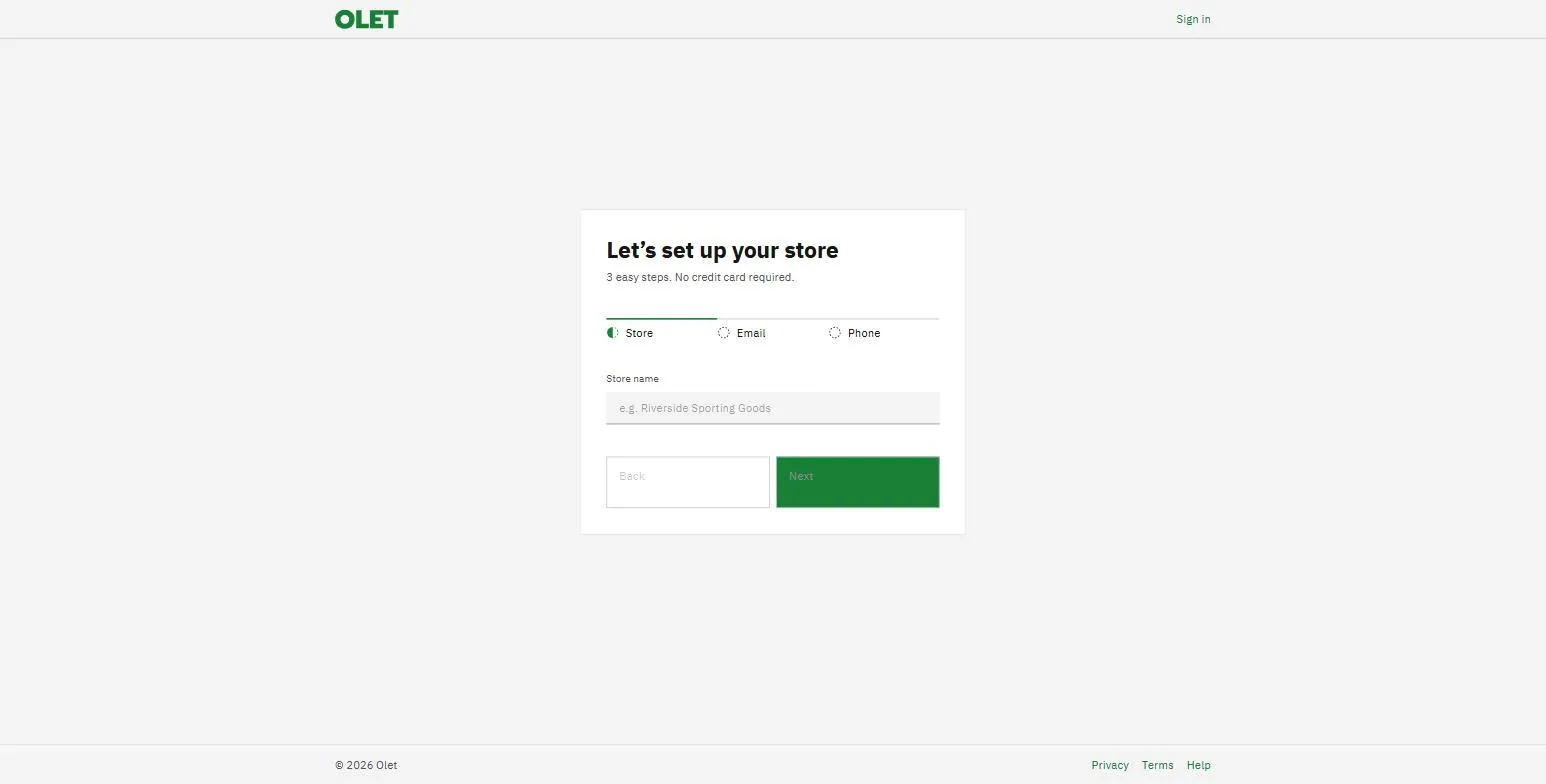
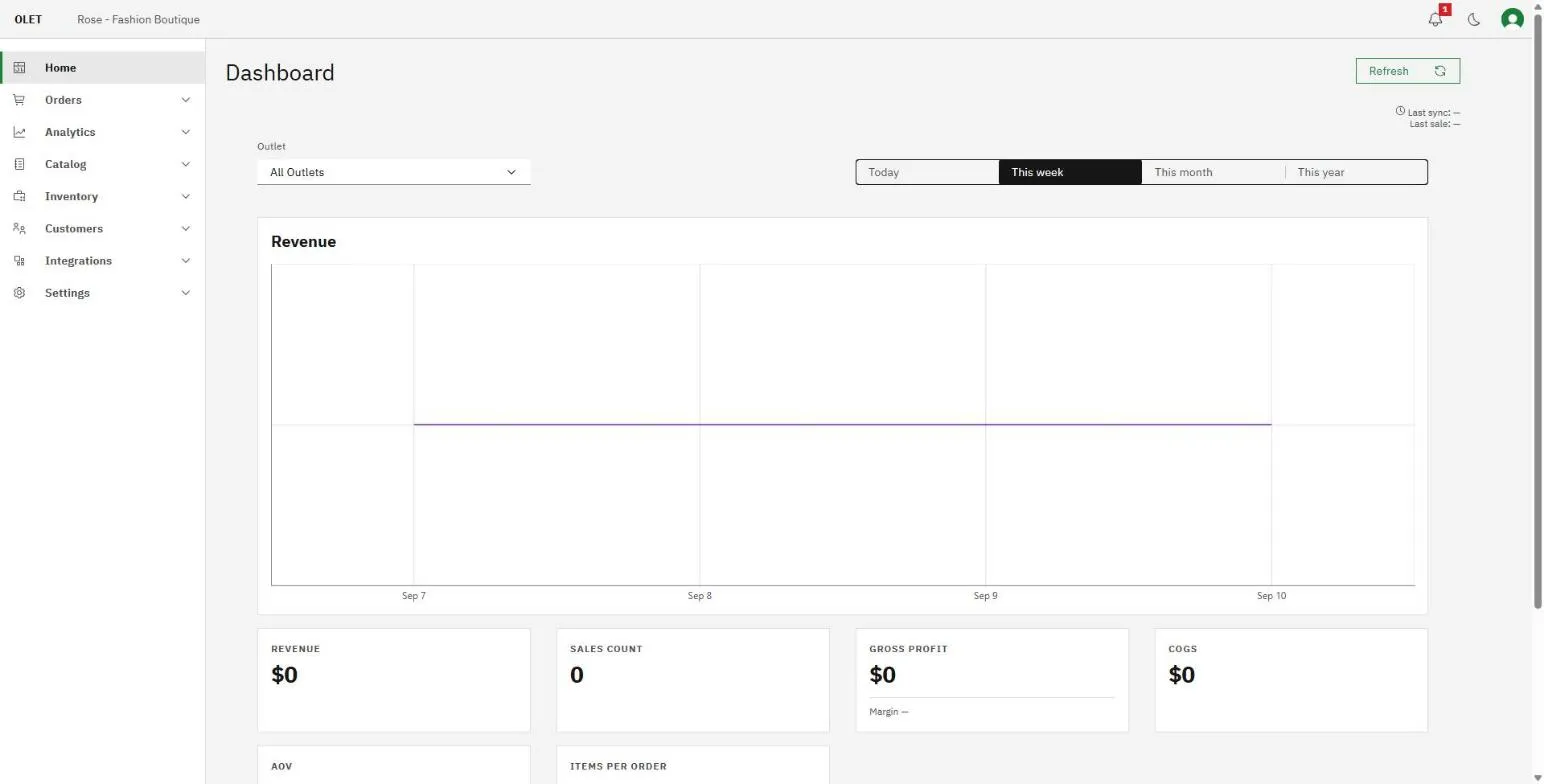
OLET builds the store and signs you in. You land on the setup guide, which walks you through your address and tax, pairing a device, and your first sale. Once your store has made a sale, OLET opens on Home, the dashboard.
If a phone number can’t be used, the form says “That number can’t be used” with the reason, and you change the number to carry on. If you are already signed in, the sign-up page sends you on to the back office instead.
Choose the right email address
Section titled “Choose the right email address”There is no password. You sign in by entering your Store ID, your email address, and then a one-time code that OLET sends to the address, so the address has to be one you can actually open. Your Store ID is in Settings > General, and Sign in to the back office covers what to do if you forget it.
Use an address you will still have in a year, and one other people at the business can reach if you are away. A shared mailbox is a better choice than a personal one. If you type an address that cannot receive mail, the form tells you before it creates anything.
Your trial
Section titled “Your trial”A new store starts on a 14 day free trial with nothing to pay. Near the end of the trial OLET emails you, and you choose a plan in Settings > Billing. If you do not choose one, the store keeps your data and asks the owner to pick before anyone can sell again.
What you get on day one
Section titled “What you get on day one”Your store is not empty. It comes with a small sample catalog so that every screen has something in it. Sample products are marked with a Sample tag in Catalog > Products, so you can always tell them from your own, and you can delete them whenever you like.
While you are still setting up, admins and managers also see Orders > Sell in the back office. That is a practice till in the browser: you can ring up a sample product and see how a sale works, but it never records a sale or touches your stock. It disappears once you pair a real register or delete your sample data, because by then you have the real thing.
Where to go next
Section titled “Where to go next”Follow the setup guide in the back office, or work through the setup checklist. It puts the rest of the setup in the order that causes the least rework.