Transfer stock between outlets
A transfer moves stock from one of your outlets to another. It has two ends: the stock leaves the source when you send it, and arrives at the destination when someone there receives it.
A transfer needs two outlets, so a store with a single outlet has nothing to transfer.
This feature depends on your plan. Check Settings > Billing to see what your plan includes.
Create a transfer
Section titled “Create a transfer”Go to Inventory > Transfers and select Create transfer.
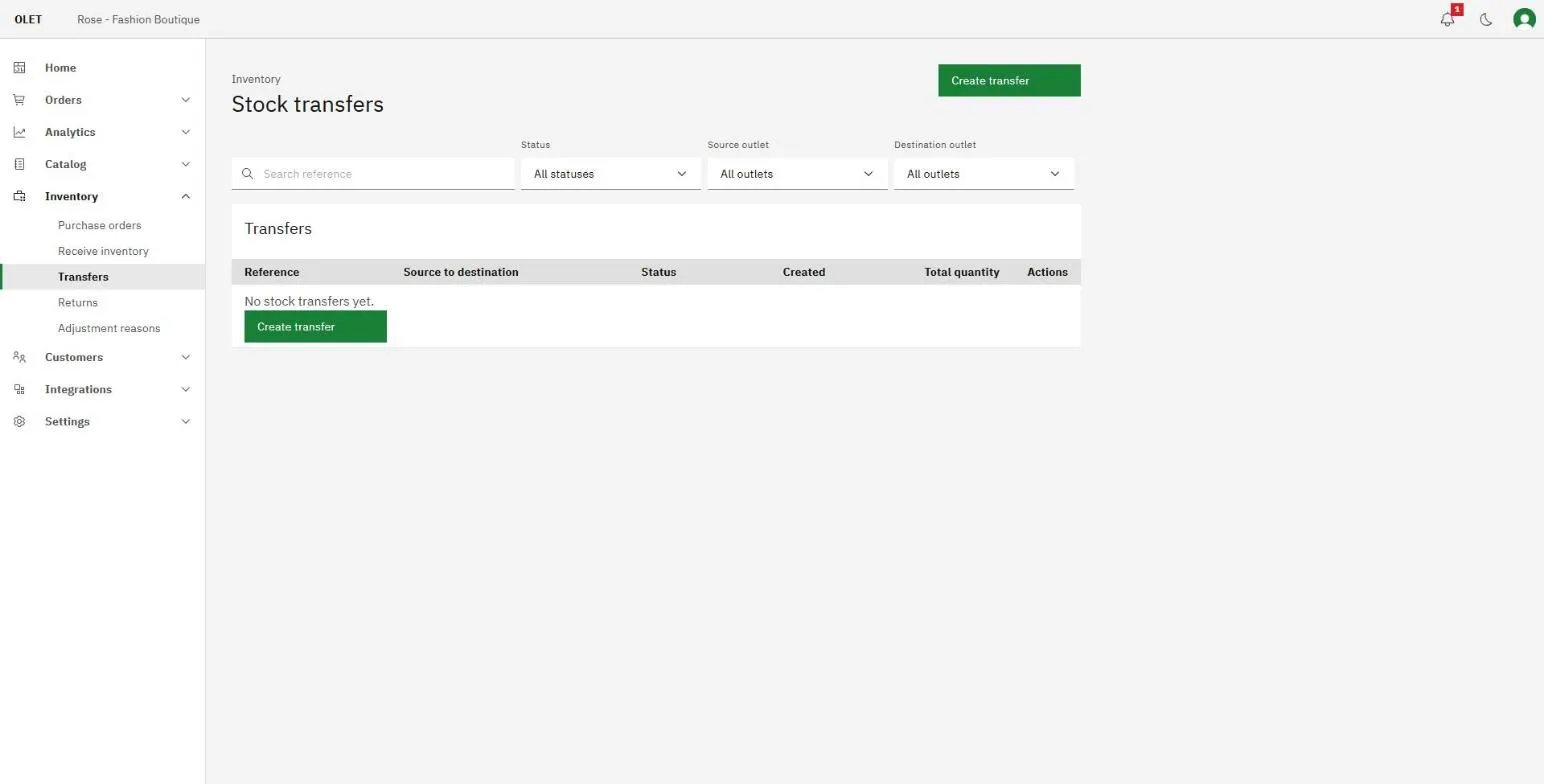
- Pick a Source outlet and a Destination outlet. They cannot be the same outlet.
- Add a Reference and a Note if they help the people at either end. Both are optional.
- Select Save draft.
While the transfer is a draft you can change either outlet at any time, even after adding lines. The lines stay, and On hand at source is read again for the new source. You need a Source outlet chosen before you can search for products: until then the search box is off and says “Select a source outlet to add products.”
Add the lines
Section titled “Add the lines”Search for products by Name or by SKU, using the switch above the search box, and select Add. Type at least two characters before results appear.
Each line shows On hand at source, which is the number that matters here: you are moving stock you actually have. Fill in Send quantity.
If a line asks for more than the source holds, the On hand at source figure gets a warning icon. Select Save changes when the lines are right. Generate PDF produces a copy of the transfer to travel with the goods.
Send it
Section titled “Send it”Select Send transfer and confirm. OLET sends what is on screen, saving your latest lines first, and checks each one against the source’s current stock. If a line is short it refuses with “Not enough stock at” followed by the outlet and the product, and you can lower the quantity or remove the line and send again. Stock comes off the source outlet immediately, and the transfer can no longer be edited.
Set Sent on in the dialog if the stock physically left on an earlier day. Leave it empty for today. The date is read in the outlet’s own time zone. If the send fails, the dialog stays open with a Transfer not sent message so you can fix the date and try again.
Between sending and receiving, the stock belongs to neither outlet. That is correct: it is in transit, and neither shop floor can sell it.
Stock arrives at the destination at the source outlet’s average cost as it was when you sent the transfer. Each receive, partial or full, blends that cost into the destination’s average. A transfer sent before cost tracking was added has no recorded cost, so it arrives at the destination’s own average, or the product’s supply price when the destination has none.
Receive it at the other end
Section titled “Receive it at the other end”Someone at the destination opens Inventory > Receive inventory, finds the transfer, and books in what arrived. The transfer also has its own Receive button once it is sent.
Receiving less than was sent is allowed and the transfer stays open at Partially received until the rest lands. See Receive inventory.
The statuses
Section titled “The statuses”| Status | What it means |
|---|---|
| Draft | Being built. Nothing has left the source outlet |
| Sent | Stock has left the source and is in transit |
| Partially received | Some of it has landed at the destination |
| Received | All of it has landed |
| Closed short | The rest is not arriving and the transfer is finished |
| Cancelled | Called off while still a draft |
When a transfer never arrives
Section titled “When a transfer never arrives”A sent transfer cannot be canceled, because the stock has already left the source shelf. What you can do is Close short, which is offered from Sent and from Partially received.
Closing short says the stock still in transit is never arriving. It does not put anything back and it does not make an adjustment. The record already shows the stock leaving the source and not landing, which is the truth of what happened.
If the loss needs a reason of its own, record it separately as a stock adjustment. See Stock adjustments and reasons.
Cancel and Delete are offered only while the transfer is still a draft.
What next
Section titled “What next”- Book in the arriving end: Receive inventory
- Correct a number instead of moving it: Stock adjustments and reasons