Integrations overview
An integration connects OLET to another system you already run your business on, so you don’t have to keep the same products and stock up to date in two places by hand.
Shopify and WooCommerce are the integrations OLET connects to today. You’ll see a tile for each in the directory.
This feature depends on your plan. Check Settings > Billing to see what your plan includes.
Where the directory lives
Section titled “Where the directory lives”Select Integrations in the left-hand nav of the back office. You land on the directory, headed “Connect Olet to the other tools you run your business on.” It has a tile for each integration OLET offers, with its current state under the name and a one-line description.
The Integrations menu also lists Shopify, WooCommerce, API & apps and All integrations. All integrations is the directory. API & apps is for developers, not a store connection: see Authentication.
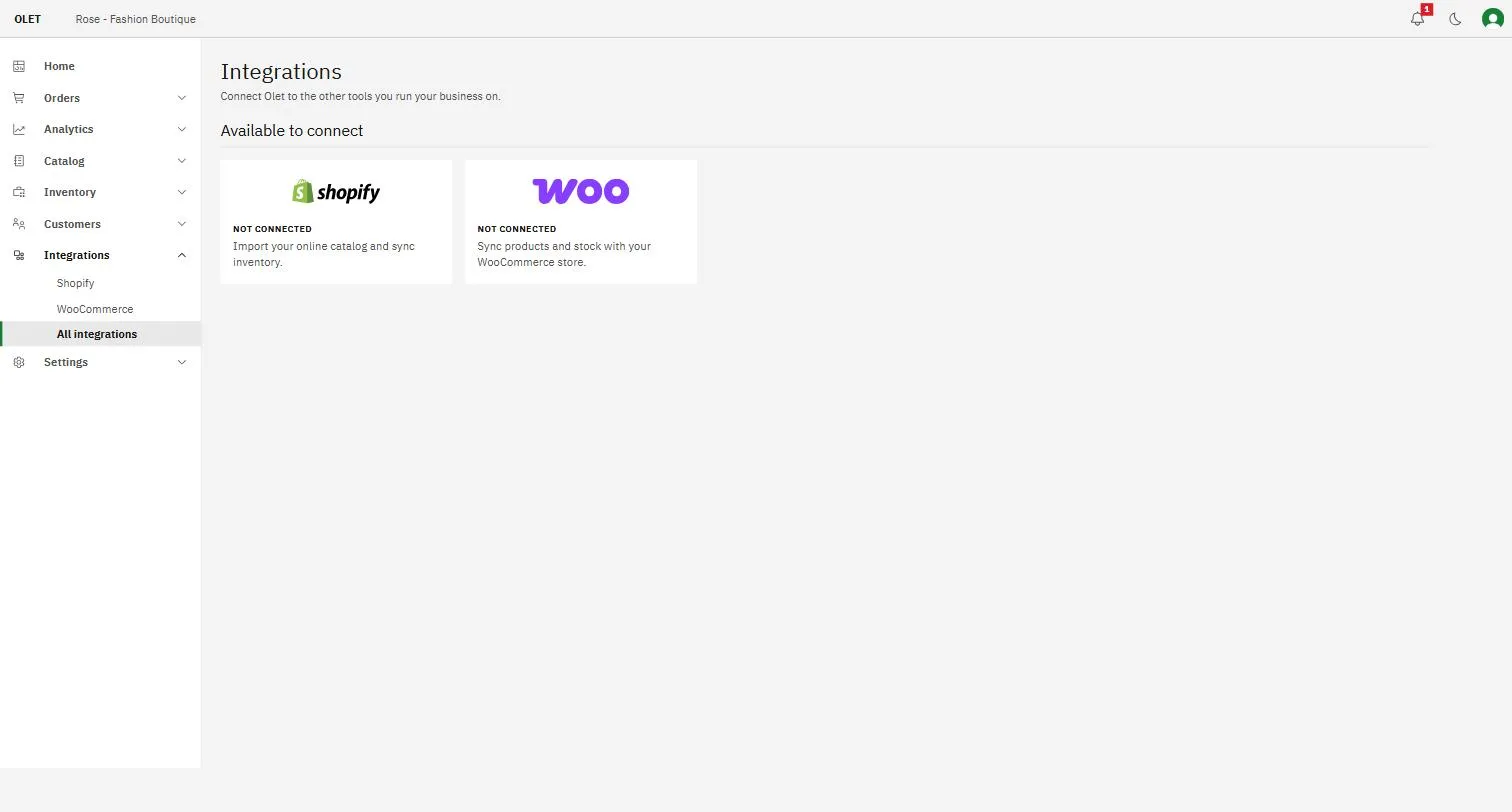
A tile is only a way in. Everything you do with an integration (connecting it, importing, changing settings, disconnecting) happens on the integration’s own page, one click away.
Connected integrations are grouped at the top under Connected. The rest sit under Available, or under Available to connect while you have nothing connected yet.
What the state under a tile means
Section titled “What the state under a tile means”| State | What it means |
|---|---|
| Not connected | You’ve never connected this one |
| Connected | OLET is talking to the other system |
| Needs attention | The connection hit an error. Open it and read what the page says |
| Disconnected | Syncing has stopped, because you disconnected it or the OLET app was removed from your store. Open it to reconnect |
Inside an integration
Section titled “Inside an integration”Open a tile and you get four tabs for Shopify, and the same set for WooCommerce:
- Overview. How things stand right now. It opens with a Needs attention card when something needs you, then an Inventory card (Shopify only) and a Connection card.
- Activity. Everything the connection has sent, received, or done, newest first, plus the things it couldn’t do. See Shopify activity and issues.
- Product history. Look up one SKU and see everything this connection has done with it.
- Settings. Where you change how the integration works: the connection itself, inventory sync, how products are kept up to date, and how each Shopify location maps to an OLET outlet.
The page header shows the store you’re connected to. If nothing is connected yet, a Connect button sits in the top right instead. If a connection has stopped, the same Needs attention card with a Reconnect button appears at the top of every tab.
The Overview tab
Section titled “The Overview tab”The Needs attention card appears only when something needs you, and each row comes with its fix. A healthy connection has no card at all. The rows you can see are:
| Row | What to do |
|---|---|
| Your Shopify connection expired, or The Shopify app was uninstalled | Select Reconnect. Syncing stays stopped until you do |
| Online orders aren’t being recorded | Allow the app to read orders in Shopify, then select Reconnect |
| Approve your first inventory sync, or Inventory sync is waiting for your approval | Select Approve, or Turn off inventory sync. See Shopify stock sync |
| Some Shopify locations aren’t syncing inventory | Select Open Settings and map each location |
| n inventory updates weren’t sent to Shopify | Select Review updates |
| n inventory levels need checking | Select Review inventory |
| n online orders didn’t fully update inventory | Select Review orders |
| n items need attention | Select Review items |
The review buttons open the Activity tab already filtered to just those items.
The Inventory card shows the Last check, who inventory is managed in, and a Check inventory button. The Connection card shows Connected since and Currency, and a Test connection button that asks the store to answer and reports what it found.
The Settings tab
Section titled “The Settings tab”- Connection. The store address (select it to open that store’s own admin in a new tab), Connected since, and three buttons: Test connection, Reconnect and Disconnect.
- Inventory sync. Shopify only. Turn it on, change who manages inventory, or turn it off: see Shopify stock sync.
- Products. The Keep products in sync switch, the table of which fields come across, and Import products: see Import from Shopify.
- Locations. Shopify only. Which outlet each Shopify location feeds: see Connect Shopify.
What an integration does and doesn’t touch
Section titled “What an integration does and doesn’t touch”Shopify and WooCommerce both bring products across: names, prices, barcodes, categories, and brands. Inventory is separate: for Shopify, see Shopify stock sync. See Import from Shopify for the exact list.
It does not bring across:
- Customers. Your customer records are yours alone. Add them in OLET: see Add and edit a customer.
- Payments. A sale you take on the register is settled with your own payment types, not with anything from your online store. See Payment types overview.
- Anything about your account. Connecting or disconnecting an integration changes nothing about your plan or your invoices, which live under Account and billing.
With inventory sync set so that OLET manages inventory, OLET also reads which items on your Shopify orders shipped, so it can take them off your stock. It reads nothing else about the order or the customer.
Before you connect
Section titled “Before you connect”Have your outlets set up first. Shopify inventory is matched to the outlet you choose, one Shopify location at a time, and you can’t choose an outlet that doesn’t exist yet. See Outlets and registers, and the Set up your store checklist if you’re still working through the basics.
Then read Connect Shopify or Connect WooCommerce.
If you’d rather not connect anything
Section titled “If you’d rather not connect anything”You don’t have to. Products can be created one at a time or loaded in bulk from a spreadsheet: see Products overview and Import products from a CSV. Stock is managed the same way with or without an integration, in Inventory.