Receive inventory
Receiving is the step that actually changes your stock. Until you receive it, an order or a transfer is only a promise.
Find what is waiting
Section titled “Find what is waiting”Go to Inventory > Receive inventory. The page lists everything awaiting receipt in one place, purchase orders and transfers together, newest first.
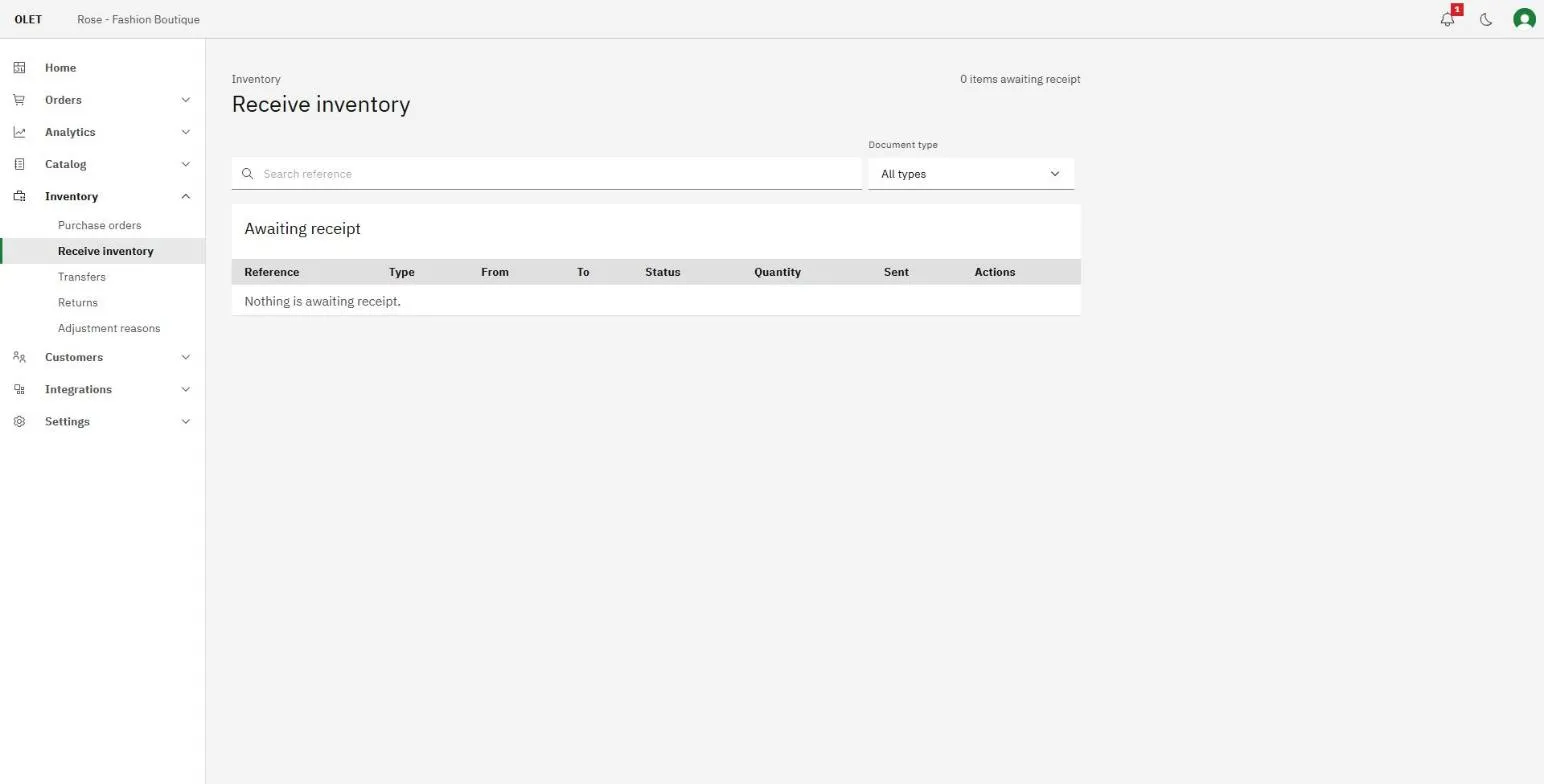
Each row shows the Reference, the Type, where it is coming From, which outlet it is going To, and its Status. Search by reference, or use the Document type filter to see only purchase orders or only transfers.
Select the arrow at the end of a row to open it. You can also get there from the document itself: a sent purchase order and a sent transfer both have a Receive button.
Only documents that are Sent or Partially received can be received. A draft has not been sent yet, and a fully received one has nothing left to book in.
Book in what arrived
Section titled “Book in what arrived”Each line shows four numbers: Expected, Received so far, Remaining, and a Receive now box for this delivery.
Fill in Receive now on each line you are booking in. Two shortcuts save typing:
- Mark all received fills every line with its full remaining quantity.
- Mark selected received does the same for only the lines you have ticked.
Then select the Receive button, check the summary, and confirm. Stock goes up at the receiving outlet immediately and the movement is recorded against whoever confirmed it.
Receiving less than you ordered
Section titled “Receiving less than you ordered”This is the normal case, not an exception. Type the quantity that actually turned up and leave the rest.
- The document moves to Partially received and stays on the awaiting list.
- Remaining on each line drops by what you booked in, so next time you open it you are looking at what is still outstanding.
- You can receive against the same document as many times as the deliveries take.
- A line you receive in full gets a Complete tag and its Receive now box disappears.
You cannot receive more than was ordered or sent. The box will not let you type past Remaining, and the server refuses it too, so a duplicate delivery cannot inflate your stock behind your back.
When the last line is complete the document flips to Received on its own. There is no separate “finish” step.
If the rest is never coming, do not leave the document open. Use Close short on the purchase order or the transfer. See Purchase orders and Transfer stock between outlets.
Receiving on a different date
Section titled “Receiving on a different date”If the goods actually arrived last Thursday and you are only entering it now, set Received on in the confirmation dialog before you confirm. Leave it empty and OLET uses today.
The date is read in the receiving outlet’s own time zone, so an outlet in a different country still books the delivery onto the day its staff experienced. A date in the future is refused.
If it goes wrong
Section titled “If it goes wrong”- The document is not on the awaiting list. It is either still a draft or already fully received. Open it directly from Inventory > Purchase orders or Inventory > Transfers and check the status tag.
- You booked in too much. A receipt cannot be undone. Correct the number with a stock adjustment, choosing a reason that says what happened. See Stock adjustments and reasons.
- A line will not accept the quantity you typed. The box caps at Remaining. If the delivery really contained more than the order, the extra is not part of this order: receive what was ordered and handle the surplus as its own adjustment.
What next
Section titled “What next”- Where the order came from: Purchase orders
- Moving stock between your own outlets: Transfer stock between outlets