Purchase orders
A purchase order is your record of what you asked a supplier for. It does not change your stock. Stock only moves when the goods arrive and you receive them.
This feature depends on your plan. Check Settings > Billing to see what your plan includes.
Create an order
Section titled “Create an order”Go to Inventory > Purchase orders and select Create purchase order.
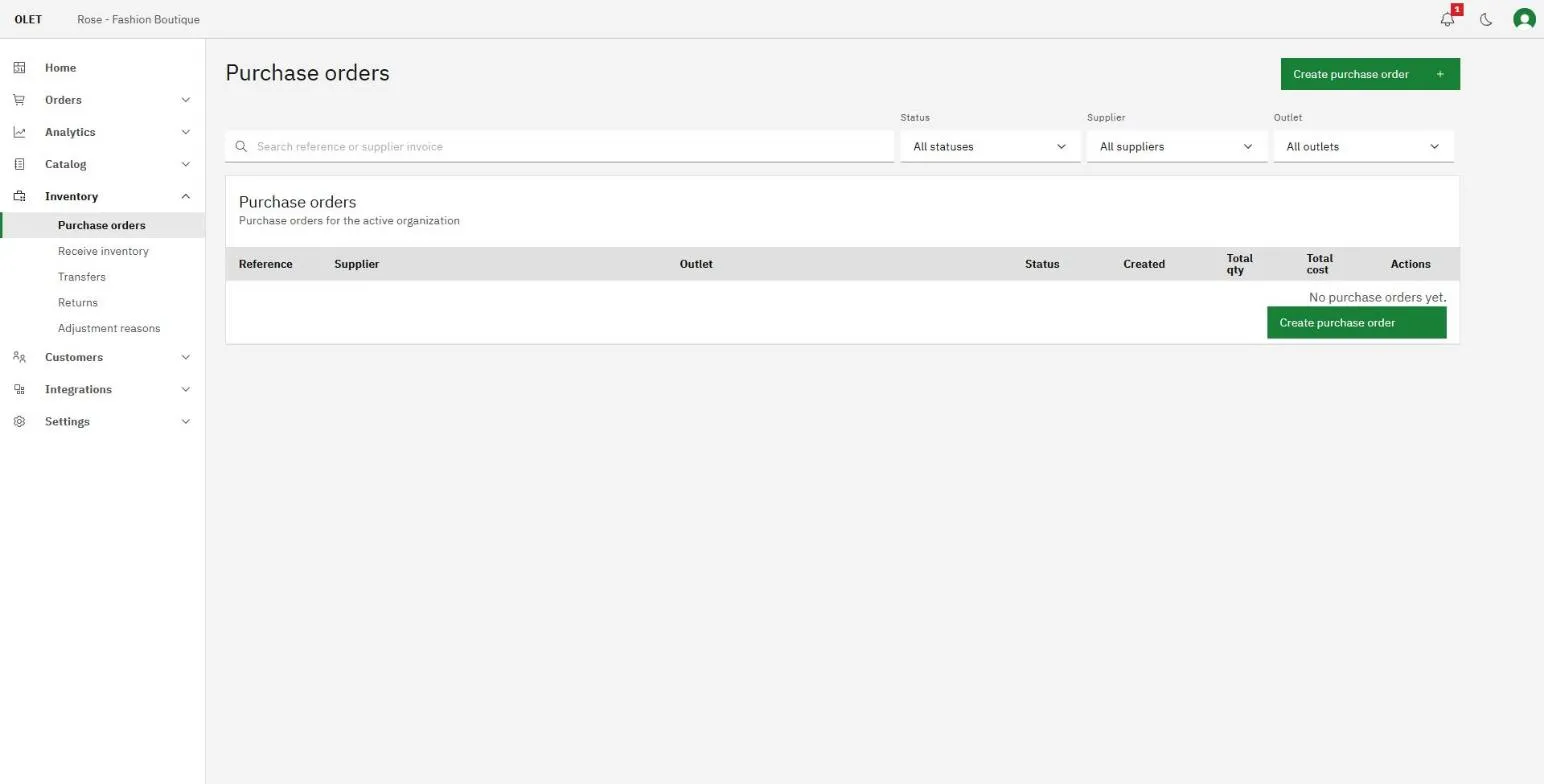
- Pick a Supplier and an Outlet. The outlet is where the stock will land, so pick the one that will physically take delivery.
- Fill in Reference if you use your own numbering, Supplier invoice if you already have one, and a Due date if you are expecting the goods by a certain day. All three are optional.
- Add a Note for anything the person receiving the order should know.
- Select Save draft.
The supplier cannot be changed once the order is saved. Get it right before you select Save draft the first time. The outlet can still be changed while the order is a draft or sent, up until the first receipt arrives.
Add the lines
Section titled “Add the lines”Under Order lines, search for the product by Name or by SKU using the switch above the search box, then select Add on the result. Type at least two characters before results appear.
Each line shows On hand at the chosen outlet so you can see what you already have before you decide how many to order. Fill in Order qty and Unit cost.
OLET fills the unit cost for you where it can: it uses the price you have recorded with that supplier for that product, and falls back to the product’s own supply price. Change it if this order is at a different price. See Brands and suppliers.
Three kinds of product cannot be ordered:
- A product with Track inventory off. There is nothing to count, so nothing to order.
- A composite product. Order the components it is built from instead.
- A variant parent. Select Show variants on the result and add the specific variant.
Select Save changes when the lines are right.
While the order is a draft, Export CSV and Import CSV sit above the lines table. Export gives you the current lines as a spreadsheet; import previews what would change, showing how many lines would be added, updated, and skipped, with a downloadable report of any skipped rows, before you confirm and apply it. A line already on the order but missing from the file is left alone.
Send it
Section titled “Send it”Select Send order and confirm. That marks the order as sent to your supplier. It does not email anyone, so send the order to your supplier the way you normally do.
A sent order can still be edited until the first receipt arrives. After that it is read only.
Select the PDF icon at the top of the order, at any status, to generate a printable copy.
The statuses
Section titled “The statuses”| Status | What it means |
|---|---|
| Draft | Being built. Nothing has been sent and nothing is expected |
| Sent | With the supplier, waiting on delivery |
| Partially received | Some of it has arrived and been booked in |
| Received | Everything on the order has arrived |
| Closed short | The rest is not coming and you have finished the order early |
| Cancelled | Called off before anything arrived |
Use the Status filter on the list to see just the open ones. Sent and Partially received are the orders you are still waiting on.
Finishing an order that will never complete
Section titled “Finishing an order that will never complete”- Cancel order is for an order where nothing has arrived. It is offered while the order is draft or sent, and it cannot be undone.
- Close short is for an order where some of it arrived and the rest never will. It is offered only once something has been received. The outstanding quantity stops counting as expected and the order stops showing as open. Stock you already received is untouched, and no adjustment is made.
Closed short is deliberately not the same as received. It keeps the shortfall visible instead of pretending the order was filled.
A draft order that you should never have started can be removed outright with Delete, which takes the order and all its lines with it.
What next
Section titled “What next”- Book in the delivery: Receive inventory
- Build a draft order automatically from what has hit its reorder point: Reorder list
- Send stock back the other way: Supplier returns