Products overview
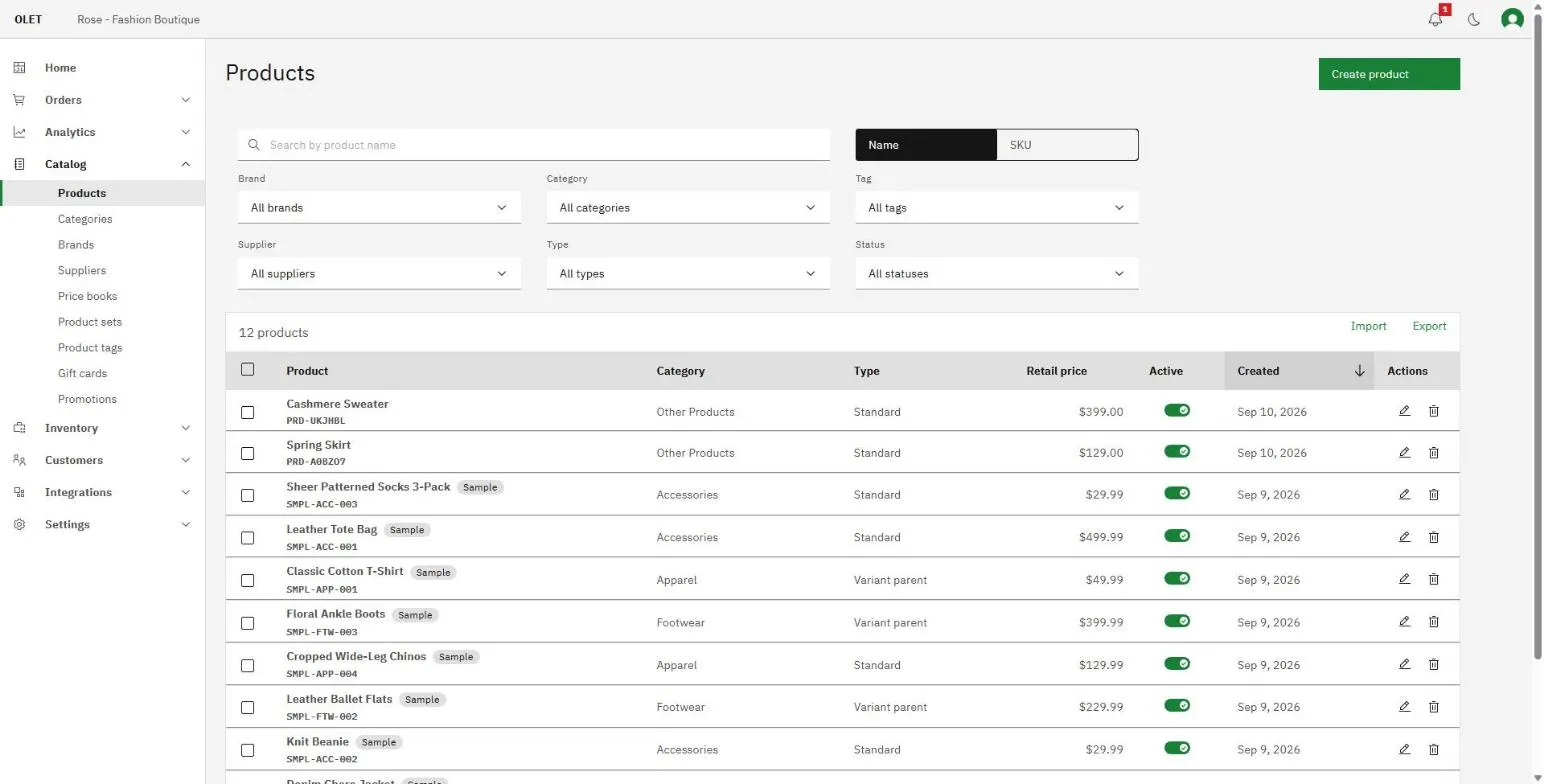
The product list is everything you sell, in one table. Open it in the back office from Catalog > Products.
Each row carries the product name with its SKU underneath, the category, the type, the retail price, an Active toggle, and the date it was created. Select anywhere on a row to open that product.
Gift cards are not in this list. They have their own page under Catalog > Gift cards.
Find a product
Section titled “Find a product”The search field sits at the top, with a switcher beside it that decides what you are searching:
- Name matches the product name.
- SKU matches the SKU or a scannable code on the product.
Under the search field are six filters: Brand, Category, Tag, Supplier, Type, and Status. They stack, so you can narrow to one supplier’s inactive shirts in three selections. When any filter is set, a Clear filters button appears under the row.
Select the Product, Retail price, or Created column header to sort by it, and select it again to reverse the order. Sorting runs across your whole catalog, not just the rows already on screen.
The list loads 50 products at a time. The count on the left of the table says what you are looking at, for example “Showing 50 of 312 products”, and Load more at the bottom fetches the next 50.
What the Type column tells you
Section titled “What the Type column tells you”- Standard is a single item with its own stock.
- Composite is a bundle built from other products you already sell.
- Variant parent is the product that holds a family, such as a t-shirt.
- Variant is one member of that family, such as the medium blue one. The tag names its parent when you hover it.
See Create a product and Product variants.
A Sample tag next to a name means the product came from the sample catalog your store was seeded with. It behaves like any other product, so edit it or delete it freely.
Switch a product on or off
Section titled “Switch a product on or off”The Active toggle in a row saves as soon as you flip it, with no separate save step. If it fails, the toggle springs back and a message appears above the table.
To find products you have switched off, set the Status filter to Inactive.
Change several products at once
Section titled “Change several products at once”Tick the checkbox at the start of each row you want, or the one in the header to take the whole visible page. A toolbar slides in over the top of the table with three actions:
- Enable switches the selected products on.
- Disable switches them off.
- Delete removes them, and asks you to confirm first.
Bulk actions run in the background. OLET grays out the affected rows while they are being processed, then tells you how many were changed and how many were skipped. A product that cannot be changed is skipped on its own rather than stopping the rest.
The trash icon at the end of a single row deletes just that product. Variant rows have no delete icon of their own, because a variant is deleted from its parent product. See Product variants.
Add, import, and export
Section titled “Add, import, and export”Create product at the top right opens the create flow. See Create a product.
Import and Export sit above the table on the right. Import is a menu with Import products, which opens a step-by-step import, and two downloads, Download template and Download template with sample data. Import products only appears if your role has the Run imports permission. Export respects whatever filters you have set, so you can export one brand rather than the whole catalog. See Import products from a CSV and Export your products.
If it goes wrong
Section titled “If it goes wrong”- Could not load products. The list could not reach OLET. Select Retry.
- The status update failed. The Active toggle went back to where it was and nothing was saved. Try it again.
- A bulk action reports skipped rows. Some of the selected products could not be changed, usually because another rule protects them. Open Settings > Activity to see the run.