General settings
General settings is where your store describes itself. The name, address, and logo you enter here are what customers see on a receipt, and the currency and time zone here are the ones every sale is recorded in.
Go to Settings > General in the back office.
Nothing on this page saves as you type. Make your changes, then select Save changes at the top right. The one exception is the logo, which uploads and removes straight away.
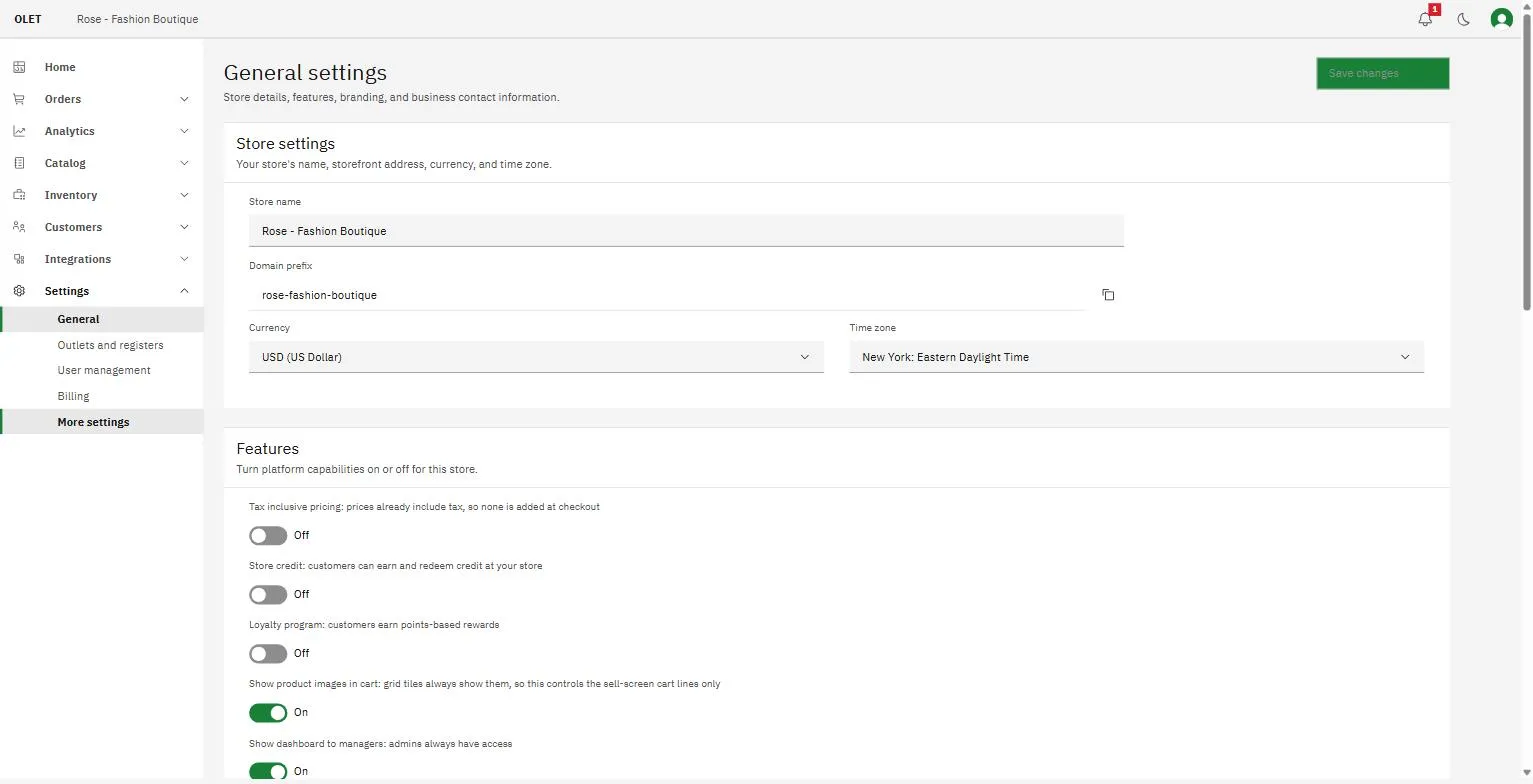
Store settings
Section titled “Store settings”- Store name is the name of your business. It is the name on your receipts and in the emails OLET sends your customers.
- Store ID is the short name your team types when they sign in to the back office. It is shown here for reference and you cannot edit it. Use the copy button beside it to copy it, and the page confirms with “Store ID copied”. See Sign in to the back office.
- Currency is the currency every price and every sale is recorded in.
- Time zone decides what “today” means for your store, so it is what your sales are dated by.
Set the currency and the time zone once, at the start. Changing either after you have started selling does not go back and re-date or re-price anything that already happened.
Features
Section titled “Features”These switches turn parts of the product on and off for the whole store. OLET adds tax on top of your prices. There is no switch for prices that already include tax. See Sales tax.
- Store credit. Customers can earn and redeem credit at your store.
- Loyalty program. Customers earn points-based rewards.
- Show product images in cart. Controls whether the cart lines on the sell screen carry a picture. Grid tiles always show images either way.
- Show dashboard to managers. Admins always see the dashboard. This switch decides whether managers do.
- Show sales history to managers. The same choice for sales history, set separately.
The two visibility switches are the only place either is controlled. Cashiers never see the dashboard or sales history, whichever way these are set. There is more on what each role can do in Add your team.
Store logo
Section titled “Store logo”Select Upload to add a logo, or Replace to swap one you already have. A PNG, JPEG, or WEBP up to 2 MB, and OLET resizes it to 512 by 512 pixels.
The logo is used on receipts and documents, but a receipt only shows it if the receipt template says so. Turn Store logo on in the template to make it appear. See Receipt settings.
Remove takes the logo off immediately. There is no confirmation step.
Online presence
Section titled “Online presence”Your website, Facebook, X, and Instagram links. All four are optional, and each one has to be a full address starting with https://.
Contact details
Section titled “Contact details”The first name, last name, Store and billing email, Phone, and the address of your business. This is the address printed on a receipt when the template has the address turned on.
Store and billing email is the store’s contact address, and it’s also where invoices and billing notices are sent: it’s the same field shown on the billing page. It is not a sign-in address, and changing it does not change how anyone signs in. To change the address a person signs in with, use the account menu at the top right instead.
If your store has a primary admin, a Use primary admin email for billing checkbox appears under the field. Tick it and the field shows and follows that person’s address automatically, so it always stays current if they change their own sign-in email. Untick it to set a separate address by hand.
If it goes wrong
Section titled “If it goes wrong”If a field turns red when you save, the message under it says what OLET expected. The most common cause is a website or social link entered without https:// at the front.
If Save changes stays grayed out, nothing on the page has changed yet. It only becomes available once you edit something.