A price book is a second list of prices. It sells chosen products at a price that is not their retail price, for the outlets, the customer groups, and the dates you pick.
This feature depends on your plan. Check Settings > Billing to see what your plan includes.
Go to Catalog > Price books. Each row shows the book’s status, its valid dates, and its scope.
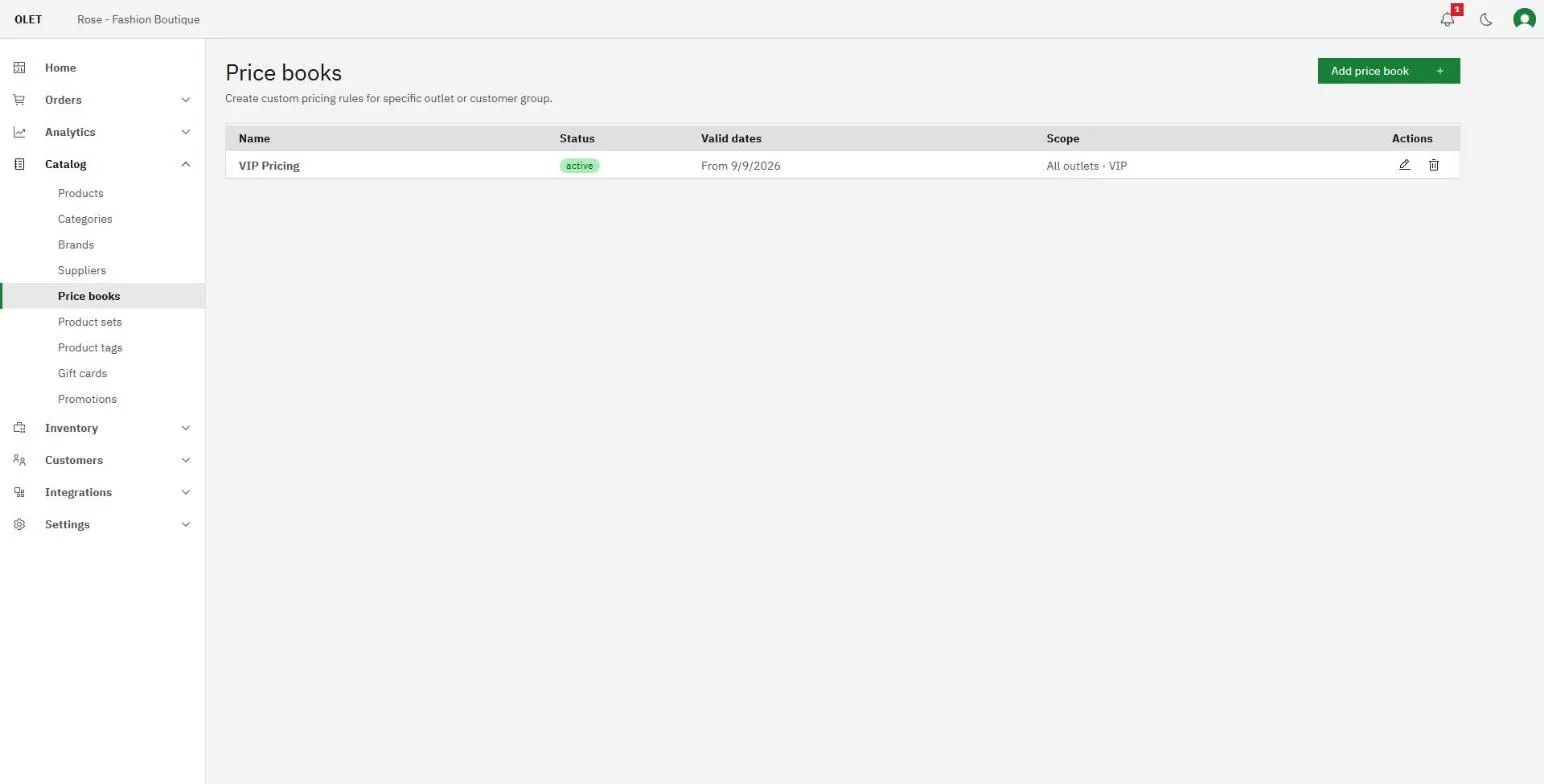
Create a price book
Section titled “Create a price book”- Select Add price book.
- Enter a Name.
- Set Status. A book only prices a sale while it is Active. Draft and Archived never do, so a book you are still building is safe as long as you leave it on Draft.
- Set Start date and Start time. Add an End date and End time too, or leave them blank to let the book run until you archive it.
- Select Save.
Times are in your store timezone, and the page says which one that is under the date fields. If the end date has already passed you get an Expired notice at the top of the book, and it prices nothing until you extend it.
Choose where it applies
Section titled “Choose where it applies”The Scope section decides who gets these prices.
- Outlets. Leave it empty and the book covers every outlet. Pick outlets and it covers only those.
- Customer groups. Leave it empty and the book covers every customer, walk-in shoppers included. Pick groups and it covers only customers in those groups, which is how you run trade or staff pricing. You build the groups themselves under Customers > Customer groups.
Add the products
Section titled “Add the products”Open a saved book and use the Products section.
- Choose Name or SKU on the switch, then type at least two characters into the search.
- Select a product from the results to add a row.
- Type the book’s price into Price book price. The row shows the product’s Retail price beside it so you can see the difference.
- Select Save. Rows are only sent to the server when you save the page.
Two kinds of product cannot be booked and do not appear in the search. Gift cards are one, because a card sold below its face value is money given away. The parent of a variant product is the other, so book the individual variants instead.
Import and export a long book
Section titled “Import and export a long book”A saved book has Import CSV and Export CSV in the Products header.
The file has two columns, sku and price, and the price is in whole currency units, so 12.50, not 1250. Export first if you want the exact shape.
If some rows are wrong, the good ones still import and OLET lists the ones it skipped with their row numbers and the reason. Fix just those and upload them again.
The table draws the first 500 rows of a book. Everything is still there and still sold at the booked price. To change the rest, export the CSV, edit it, and import it back.
Which price wins
Section titled “Which price wins”One product can be covered by more than one active book at once. When that happens OLET charges the lowest of the prices those books give. There is no priority order to set.
A booked price also becomes the starting price a promotion works from, so a promotion set to stack with price books takes its discount off the book price rather than off retail. See Promotions.
If it goes wrong
Section titled “If it goes wrong”- The old price still rings up. Check the status is Active, then check today’s date sits inside the window, then check the register’s outlet and the customer’s group are in scope.
- A price you did not expect rings up. Another active book probably covers the same product at a lower price. Lowest wins.
- A product will not add. Gift cards and variant parents are excluded on purpose. Add the individual variants.
- Some rows would not import. Read the skipped list. Each line names the row number and what was wrong with it.